
If you’ve ever written a PowerShell script that makes web requests, calls REST APIs, or builds URLs dynamically, you’ve probably hit a point where you needed to convert a plain string into a proper URI. Maybe you had spaces in a file path, special characters messing up your query string, or you just needed to parse a URL and extract the hostname.
I’ve been there plenty of times, and in this tutorial, I’ll walk you through everything you need to know about converting strings to URIs in PowerShell — from the simplest cast to URL encoding with multiple .NET classes.
Let’s get into it.
What Even Is a URI in PowerShell?
Before jumping to the code, let me quickly explain what we’re working with.
A URI (Uniform Resource Identifier) is more than just a URL string — it’s a structured object with properties like the scheme (https), host (example.com), path, query string, port, and fragment. In PowerShell, when you convert a string to a URI, you’re turning a flat text value into a rich System.Uri object that you can actually work with.
Think of it this way: a string is just text, but a URI object knows the difference between the domain and the path. That’s incredibly useful when you’re scripting.
Method 1: Casting a String to a URI Using [uri]
This is the simplest and most common way. You just cast your string directly to [uri] (which is a type accelerator for System.Uri).
$myString = 'https://www.example.com/products/item?color=blue&size=large'
$uri = [uri]$myString
Now $uri is a full URI object. Let me show you what you can pull from it:
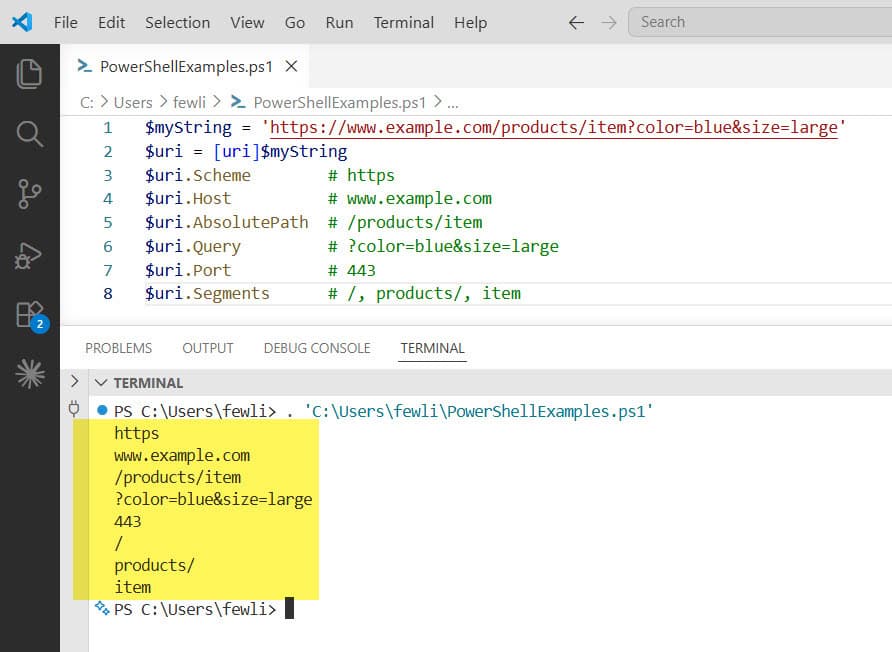
$uri.Scheme        # https
$uri.Host          # www.example.com
$uri.AbsolutePath  # /products/item
$uri.Query         # ?color=blue&size=large
$uri.Port          # 443
$uri.Segments      # /, products/, item
This is super handy when you receive a URL as a string (say, from a config file or user input) and you need to extract parts of it.
You can see the exact output in the screenshot below:
When to use this:
- You already have a valid URL string
- You want to read properties like host, port, or path
- You’re passing the URI to a cmdlet like
Invoke-WebRequest
Method 2: Using [System.Uri] Directly
The [uri] shorthand and [System.Uri] are the same thing. But I’ll mention [System.Uri] separately because a lot of scripts you’ll find online use the full class name, and it helps to know they’re equivalent.
$uri = [System.Uri]'https://api.example.com/data?page=1'
$uri.AbsoluteUri    # https://api.example.com/data?page=1
$uri.Host           # api.example.com
You can also list all available properties and methods on this object:
[System.Uri]'https://example.com' | Get-Member
This is something I do often when I’m exploring a new class. You’ll see a long list of methods — MakeRelativeUri, GetLeftPart, IsBaseOf, and more.
Check out PowerShell: Convert Hashtable to String
Method 3: Encoding a String URL Using [uri]::EscapeUriString()
Here’s where things get practical. If your URL has spaces or special characters, a plain cast won’t encode them for you. You need to use the static EscapeUriString method.
$url = 'https://example.com/search?q=power shell tips&category=scripting'
$encodedUrl = [uri]::EscapeUriString($url)
$encodedUrl
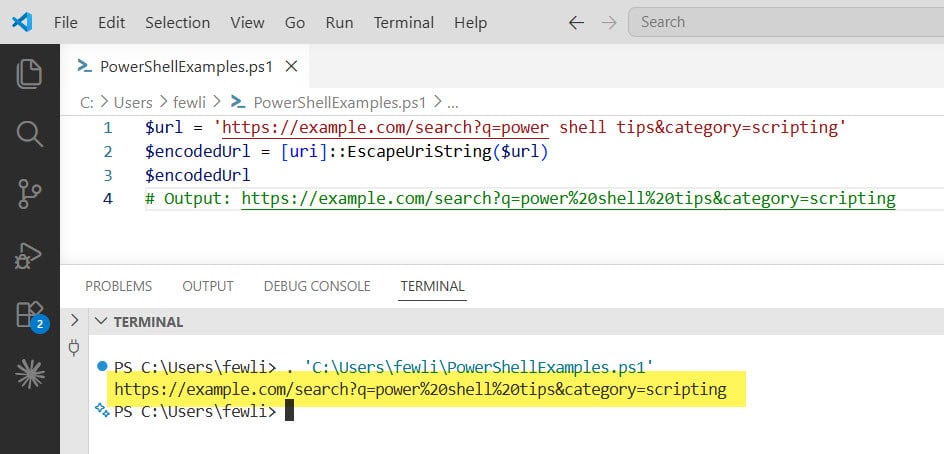
# Output: https://example.com/search?q=power%20shell%20tips&category=scripting
Notice how spaces got converted to %20. This method is smart enough to leave the ://, /, ?, and & characters alone — because those are valid URI characters. It only encodes what actually needs encoding.
You can see the exact output in the screenshot below:
When to use this:
- You’re building a URL and part of it has spaces or accented characters
- You want to encode the full URL without touching its structural characters
Read PowerShell Select-String -AllMatches Examples
Method 4: Encoding a Component Using [uri]::EscapeDataString()
Now, EscapeDataString is different from EscapeUriString. This one encodes everything — including characters like /, ?, &, and :. Use it when you’re encoding just a piece of a URL, like a query parameter value, not the whole URL.
$searchTerm = 'power shell & scripting tips'
$encoded = [uri]::EscapeDataString($searchTerm)
$encoded
# Output: power%20shell%20%26%20scripting%20tips
See how & became %26? That’s exactly what you want when this value is going to be part of a query string parameter.
A real-world example:
$base = 'https://api.example.com/search?q='
$query = 'SharePoint online & Power Automate'
$fullUrl = $base + [uri]::EscapeDataString($query)
$fullUrl
# Output: https://api.example.com/search?q=SharePoint%20online%20%26%20Power%20Automate
This is something I use all the time when calling APIs where query values might include special characters.
Quick comparison:
| Method | Encodes spaces | Encodes &, ?, : | Best used for |
|---|---|---|---|
EscapeUriString | ✅ Yes | ❌ No | Full URLs |
EscapeDataString | ✅ Yes | ✅ Yes | Query parameter values |
Check out Convert a String to Title Case in PowerShell
Method 5: Using [System.Net.WebUtility]::UrlEncode()
Another option, especially if you’re more comfortable with the System.Net namespace. This one also fully encodes a string, similar to EscapeDataString.
$value = 'hello world & more'
$encoded = [System.Net.WebUtility]::UrlEncode($value)
$encoded
# Output: hello+world+%26+more
Notice the difference: WebUtility::UrlEncode replaces spaces with + instead of %20. This is the old HTML form encoding style. Whether this matters depends on the API or service you’re calling — most modern REST APIs accept %20, so I generally prefer EscapeDataString for that reason.
To decode it back, you use:
[System.Net.WebUtility]::UrlDecode($encoded)
# Output: hello world & more
Check out How to Use PowerShell to Encode and Decode Strings?
Method 6: Using [System.Web.HttpUtility] for Query Strings
This is a slightly more advanced approach, but it’s great when you’re building a URL with multiple query parameters. The HttpUtility class from System.Web gives you a proper key-value collection to work with.
First, load the assembly:
Add-Type -AssemblyName System.Web
Then build your query string like this:
$queryParams = [System.Web.HttpUtility]::ParseQueryString('')

$queryParams.Add('search', 'PowerShell tips')
$queryParams.Add('category', 'scripting & automation')
$queryParams.Add('page', '1')

$uriBuilder = New-Object System.UriBuilder('https://example.com/results')
$uriBuilder.Query = $queryParams.ToString()

$finalUrl = $uriBuilder.Uri.AbsoluteUri
$finalUrl
# Output: https://example.com/results?search=PowerShell+tips&category=scripting+%26+automation&page=1
This approach keeps your code clean and readable. Instead of manually concatenating strings and worrying about ? vs &, you let the .NET class handle it. I find this really useful when I’m building API calls with 4+ parameters.
Check out How to Escape Ampersands in URLs with PowerShell?
Method 7: Validating a String Before Converting to URI
One thing worth doing in production scripts is checking whether a string is actually a valid URI before you try to cast it. Nothing worse than your script blowing up because someone passed in a bad URL.
Use [uri]::TryCreate() for this:
$inputString = 'https://example.com/path'
$uriResult = $null

if ([uri]::TryCreate($inputString, [System.UriKind]::Absolute, [ref]$uriResult)) {
    Write-Host "Valid URI: $($uriResult.AbsoluteUri)"
} else {
    Write-Host "That's not a valid URI."
}
The TryCreate method takes three arguments:
- The string you want to validate
- The kind of URI (
Absolute,Relative, orRelativeOrAbsolute) - A
[ref]variable to hold the result if it succeeds
This is much safer than just doing [uri]$someUserInput and hoping for the best.
Check out ConvertTo-Json in PowerShell
Method 8: Decoding a URI String
You’ll also need to decode URIs sometimes — for example, if you’re reading a URL from a log file and need to display it cleanly.
$encodedUrl = 'https://example.com/search?q=power%20shell%20tips'
$decoded = [uri]::UnescapeDataString($encodedUrl)
$decoded
# Output: https://example.com/search?q=power shell tips
Simple and clean. Same class, different method.
Putting It All Together: A Practical Example
Let me show you a real script you might actually use — building an API request URL from dynamic inputs:
# Input values (imagine these come from user input or a config file)
$baseUrl = 'https://api.myservice.com/v1/items'
$searchTerm = 'SharePoint & Power Automate'
$author = 'John Smith'
$page = 3

# Build and encode the query string
Add-Type -AssemblyName System.Web
$query = [System.Web.HttpUtility]::ParseQueryString('')
$query.Add('q', $searchTerm)
$query.Add('author', $author)
$query.Add('page', $page)

# Assemble the URI
$builder = New-Object System.UriBuilder($baseUrl)
$builder.Query = $query.ToString()

$finalUri = $builder.Uri.AbsoluteUri
Write-Host "Request URL: $finalUri"

# Use it in a web request
# Invoke-RestMethod -Uri $finalUri -Method Get
This script handles encoding automatically, keeps the code readable, and produces a clean URL every time.
Check out Join an Array of Strings in PowerShell
Don’t Make These Mistakes
Here are a few things I’ve stumbled over so you don’t have to:
- Using
EscapeUriStringon query values — It won’t encode&and=, which can break your query string. UseEscapeDataStringfor values. - Forgetting to load
System.Web—HttpUtilitywon’t work until you runAdd-Type -AssemblyName System.Web. - Assuming
WebUtility::UrlEncodeandEscapeDataStringbehave the same — They don’t. One uses+for spaces, the other uses%20. - Not validating user input — Always use
TryCreateif the URL comes from outside your script.
Quick Reference
| What you need | Method to use |
|---|
| What you need | Method to use |
|---|---|
| Cast string to URI object | [uri]$string |
| Encode full URL | [uri]::EscapeUriString($url) |
| Encode a query parameter value | [uri]::EscapeDataString($value) |
| Decode a URI | [uri]::UnescapeDataString($encoded) |
Encode with + for spaces | [System.Net.WebUtility]::UrlEncode($value) |
| Build multi-param query string | System.Web.HttpUtility + UriBuilder |
| Validate before converting | [uri]::TryCreate($string, ...) |
That covers everything you need to convert strings to URIs in PowerShell. Whether you’re building REST API calls, passing URLs to Invoke-WebRequest, or just parsing a URL someone handed you, you’ve now got the right tool for every scenario.
You may also like:

Bijay Kumar is an esteemed author and the mind behind PowerShellFAQs.com, where he shares his extensive knowledge and expertise in PowerShell, with a particular focus on SharePoint projects. Recognized for his contributions to the tech community, Bijay has been honored with the prestigious Microsoft MVP award. With over 15 years of experience in the software industry, he has a rich professional background, having worked with industry giants such as HP and TCS. His insights and guidance have made him a respected figure in the world of software development and administration. Read more.