
To convert PNG to JPG with PowerShell, load the image with System.Drawing and save it in JPEG format. It’s built into Windows, so you don’t need to install anything:
Add-Type -AssemblyName System.Drawing
$png = [System.Drawing.Image]::FromFile('C:\Images\logo.png')
$png.Save('C:\Images\logo.jpg', [System.Drawing.Imaging.ImageFormat]::Jpeg)
$png.Dispose()
That works, but transparent areas turn black and you can’t set the quality. Below I fix both with a reusable function, compare quality settings and convert a whole folder. I drew the sample images with PowerShell, and every example ran in PowerShell 7 and 5.1.
The transparency problem
JPG has no transparency. My sample logo.png has a transparent background, and after a plain Save the corner pixel is black:
Add-Type -AssemblyName System.Drawing
$dir = (Resolve-Path -Path .\Images).Path

$png = [System.Drawing.Image]::FromFile("$dir\logo.png")
$png.Save("$dir\logo.jpg", [System.Drawing.Imaging.ImageFormat]::Jpeg)
$png.Dispose()

$check = [System.Drawing.Bitmap]::new("$dir\logo.jpg")
"Corner color of logo.jpg: $($check.GetPixel(5, 5).Name)"
$check.Dispose()
Output:
Corner color of logo.jpg: ff000000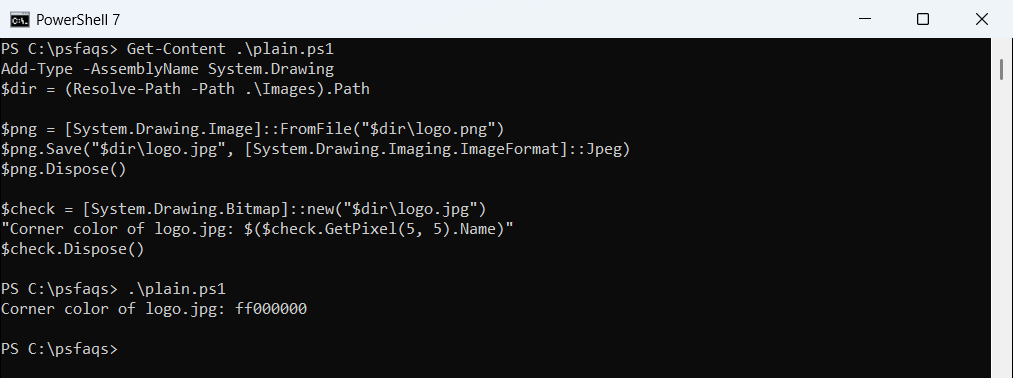
Logos and screenshots with rounded corners end up with black edges. Use full paths with these .NET methods, because .NET doesn’t follow PowerShell’s current folder. To build one, see getting the full path of a file.
A ConvertTo-Jpg function with a white background
This function draws the PNG onto a white canvas first, then saves it with a quality you choose:
function ConvertTo-Jpg {
    param([string]$Path, [string]$Destination, [long]$Quality = 90)

    Add-Type -AssemblyName System.Drawing
    $png = [System.Drawing.Image]::FromFile($Path)
    $jpg = [System.Drawing.Bitmap]::new($png.Width, $png.Height)
    $g = [System.Drawing.Graphics]::FromImage($jpg)
    $g.Clear([System.Drawing.Color]::White)                 # fill transparent areas with white
    $g.DrawImage($png, 0, 0, $png.Width, $png.Height)

    $codec  = [System.Drawing.Imaging.ImageCodecInfo]::GetImageEncoders() | Where-Object MimeType -EQ 'image/jpeg'
    $params = [System.Drawing.Imaging.EncoderParameters]::new(1)
    $params.Param[0] = [System.Drawing.Imaging.EncoderParameter]::new([System.Drawing.Imaging.Encoder]::Quality, $Quality)
    $jpg.Save($Destination, $codec, $params)

    $g.Dispose(); $jpg.Dispose(); $png.Dispose()
}
I saved it as ConvertTo-Jpg.ps1 and dot-source it below, as described in functions in PowerShell. Now the transparent corner is white:
. .\ConvertTo-Jpg.ps1
$dir = (Resolve-Path -Path .\Images).Path
ConvertTo-Jpg -Path "$dir\logo.png" -Destination "$dir\logo.jpg"

Add-Type -AssemblyName System.Drawing
$check = [System.Drawing.Bitmap]::new("$dir\logo.jpg")
"Corner color of logo.jpg: $($check.GetPixel(5, 5).Name)"
$check.Dispose()
Output:
Corner color of logo.jpg: ffffffffffffffff is solid white. Change Color::White to any color that matches your page background.
Choose the JPG quality
Quality runs from 0 to 100. Lower values give smaller files with more visible artifacts:
. .\ConvertTo-Jpg.ps1
$dir = (Resolve-Path -Path .\Images\Screenshots).Path
foreach ($q in 95, 75, 40) {
    ConvertTo-Jpg -Path "$dir\dashboard-2026-10.png" -Destination "$dir\dashboard-q$q.jpg" -Quality $q
    'Quality {0,2}: {1,6:N0} bytes' -f $q, (Get-Item -Path "$dir\dashboard-q$q.jpg").Length
}
Output:
Quality 95:  7,703 bytes
Quality 75:  4,851 bytes
Quality 40:  3,597 bytes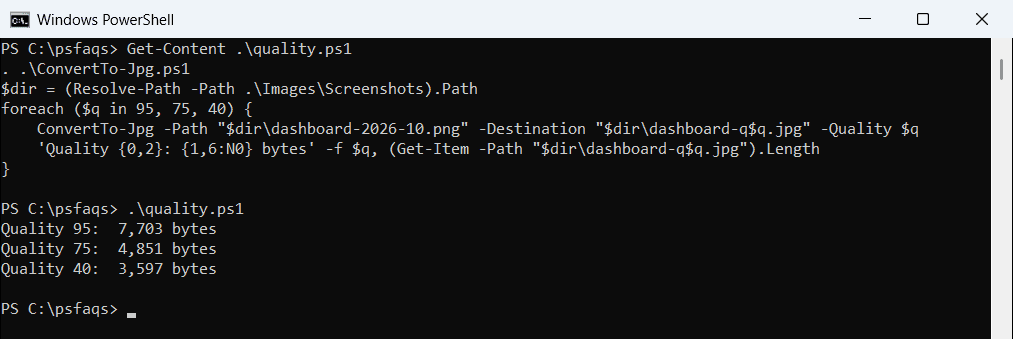
85 to 90 is a good default for screenshots and photos on a website. To compare the results, see getting a file’s size.
Convert every PNG in a folder
Loop through the folder and use ChangeExtension to build each new name. The original PNGs stay untouched:
. .\ConvertTo-Jpg.ps1
Get-ChildItem -Path .\Images\Screenshots -Filter *.png | ForEach-Object {
    $target = [System.IO.Path]::ChangeExtension($_.FullName, '.jpg')
    ConvertTo-Jpg -Path $_.FullName -Destination $target -Quality 85
    '{0} -> {1}' -f $_.Name, (Split-Path -Path $target -Leaf)
}
Output:
dashboard-2026-10.png -> dashboard-2026-10.jpg
report-austin.png -> report-austin.jpg
report-denver.png -> report-denver.jpg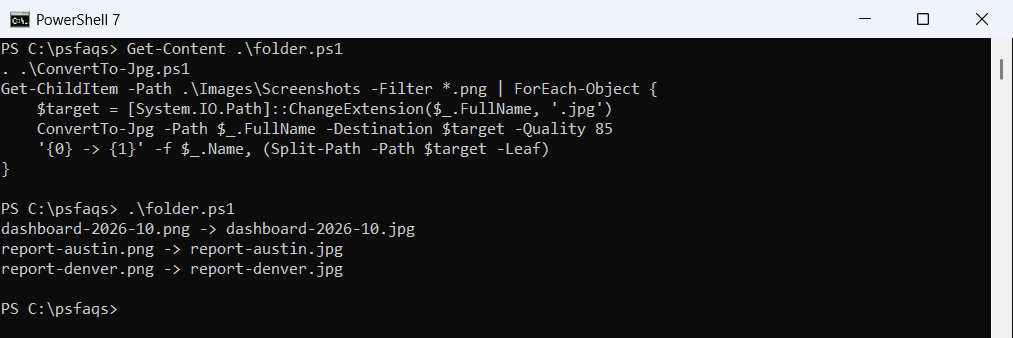
Add -Recurse to Get-ChildItem to include subfolders. For more loop patterns, see PowerShell foreach file in a folder.
Does this work in PowerShell 7?
Yes, on Windows. PowerShell 7 includes System.Drawing, and it uses the same Windows graphics engine as 5.1, so every example gave the same file sizes in both versions.
On Linux and macOS, System.Drawing isn’t supported, so use a tool such as ImageMagick there. Not sure which version you run? See checking your PowerShell version.
Frequently Asked Questions
How do I convert PNG to JPG in PowerShell?
Load it with [System.Drawing.Image]::FromFile() and call Save() with [System.Drawing.Imaging.ImageFormat]::Jpeg. See the Image.Save reference.
Why does my JPG have a black background?
JPG has no transparency, so transparent pixels become black. Draw the PNG onto a white bitmap before saving.
How do I set JPG quality in PowerShell?
Save with the JPEG ImageCodecInfo and an EncoderParameter for Encoder.Quality, from 0 to 100.
Can I convert all PNG files in a folder?
Yes. Loop over Get-ChildItem -Filter *.png and save each one with a .jpg extension.
Do I need ImageMagick to convert images in PowerShell?
Not on Windows. System.Drawing is built in. On