
To convert WebP to JPG with PowerShell, decode the WebP with Windows’ built-in image codecs through WPF’s BitmapDecoder, then save the pixels as a JPEG. System.Drawing, the usual choice for images, can’t read WebP at all:
$decoder = [System.Windows.Media.Imaging.BitmapDecoder]::Create([Uri]'C:\Images\desk.webp', 'None', 'OnLoad')Below I show why System.Drawing fails, check that the WebP decoder is there, fix the black background on transparent images and convert a whole folder. I made three sample WebP files for the test, and every example ran in PowerShell 7 and Windows PowerShell 5.1.
Why System.Drawing can’t open WebP
System.Drawing uses GDI+, which only knows BMP, GIF, JPEG, PNG, TIFF and a few older formats. Opening a WebP fails with a misleading message:
Add-Type -AssemblyName System.Drawing
$path = (Resolve-Path -Path .\WebP\Products\standing-desk.webp).Path
try   { $image = [System.Drawing.Image]::FromFile($path) }
catch { "Failed. $($_.Exception.InnerException.Message)" }
Output:
Failed. An object could not be created, possibly due to a lack of memory, but most likely due to invalid input.
That’s the PowerShell 7 wording. Windows PowerShell 5.1 says Out of memory, which sends many people looking for a memory problem that doesn’t exist. For formats GDI+ can’t read, like HEIC, see converting HEIC to JPG.
Check the WebP decoder
WPF’s BitmapDecoder uses the Windows Imaging Component, which picks up the Microsoft WebP decoder from the Webp Image Extensions. Windows 11 includes it:
Add-Type -AssemblyName PresentationCore
$path = (Resolve-Path -Path .\WebP\Products\standing-desk.webp).Path
$decoder = [System.Windows.Media.Imaging.BitmapDecoder]::Create([Uri]$path, 'None', 'OnLoad')
"Decoder: $($decoder.CodecInfo.FriendlyName)"
"Size:    $($decoder.Frames[0].PixelWidth) x $($decoder.Frames[0].PixelHeight)"
Output:
Decoder: Microsoft Webp Decoder
Size:    800 x 500
If you get a “No imaging component suitable” error instead, install Webp Image Extensions from the Microsoft Store. To confirm which Windows release you have, see getting the Windows version.
A ConvertFrom-WebP function
The function decodes the WebP with WPF and keeps its alpha channel. Then it hands the pixels to System.Drawing, which can’t read WebP but is good at drawing on a white canvas and saving JPEGs:
function ConvertFrom-WebP ([string]$Path, [string]$Destination, [long]$Quality = 90) {
    Add-Type -AssemblyName PresentationCore, WindowsBase, System.Drawing

    # 1. Decode with the Windows WebP codec (through WPF) and keep the alpha channel
    $decoder = [System.Windows.Media.Imaging.BitmapDecoder]::Create([Uri]$Path, 'PreservePixelFormat, IgnoreImageCache', 'OnLoad')
    $frame = [System.Windows.Media.Imaging.FormatConvertedBitmap]::new(
        $decoder.Frames[0], [System.Windows.Media.PixelFormats]::Bgra32, $null, 0)
    $w = $frame.PixelWidth; $h = $frame.PixelHeight
    $pixels = [byte[]]::new($w * $h * 4)
    $frame.CopyPixels($pixels, $w * 4, 0)

    # 2. Copy the pixels into a System.Drawing bitmap
    $argb = [System.Drawing.Bitmap]::new($w, $h, [System.Drawing.Imaging.PixelFormat]::Format32bppArgb)
    $lock = $argb.LockBits([System.Drawing.Rectangle]::new(0, 0, $w, $h), 'WriteOnly', $argb.PixelFormat)
    [System.Runtime.InteropServices.Marshal]::Copy($pixels, 0, $lock.Scan0, $pixels.Length)
    $argb.UnlockBits($lock)

    # 3. Draw it on white and save as JPEG
    $jpg = [System.Drawing.Bitmap]::new($w, $h)
    $g = [System.Drawing.Graphics]::FromImage($jpg)
    $g.Clear([System.Drawing.Color]::White)
    $g.DrawImage($argb, 0, 0, $w, $h)
    $codec  = [System.Drawing.Imaging.ImageCodecInfo]::GetImageEncoders() | Where-Object MimeType -EQ 'image/jpeg'
    $params = [System.Drawing.Imaging.EncoderParameters]::new(1)
    $params.Param[0] = [System.Drawing.Imaging.EncoderParameter]::new([System.Drawing.Imaging.Encoder]::Quality, $Quality)
    $jpg.Save($Destination, $codec, $params)
    $g.Dispose(); $jpg.Dispose(); $argb.Dispose()
}
I saved it as ConvertFrom-WebP.ps1 together with a small helper that reads the color of a corner pixel:
function Get-CornerColor ($Path) {
    Add-Type -AssemblyName System.Drawing
    $b = [System.Drawing.Bitmap]::new($Path); $c = $b.GetPixel(5, 5).Name; $b.Dispose(); $c
}
Transparent WebP files turn black without it
Logos and icons in WebP are often transparent. JPG has no transparency, and a plain decode and save fills those areas with black:
. .\ConvertFrom-WebP.ps1
Add-Type -AssemblyName PresentationCore
$dir = (Resolve-Path -Path .\WebP).Path
$decoder = [System.Windows.Media.Imaging.BitmapDecoder]::Create([Uri]"$dir\logo.webp", 'None', 'OnLoad')
$enc = [System.Windows.Media.Imaging.JpegBitmapEncoder]::new()
$enc.Frames.Add([System.Windows.Media.Imaging.BitmapFrame]::Create($decoder.Frames[0]))
$out = [System.IO.File]::Create("$dir\logo-plain.jpg"); $enc.Save($out); $out.Dispose()
"Default decode, corner:   $(Get-CornerColor "$dir\logo-plain.jpg")"

ConvertFrom-WebP -Path "$dir\logo.webp" -Destination "$dir\logo.jpg"
"ConvertFrom-WebP, corner: $(Get-CornerColor "$dir\logo.jpg")"
Output:
Default decode, corner:   ff000000
ConvertFrom-WebP, corner: ffffffff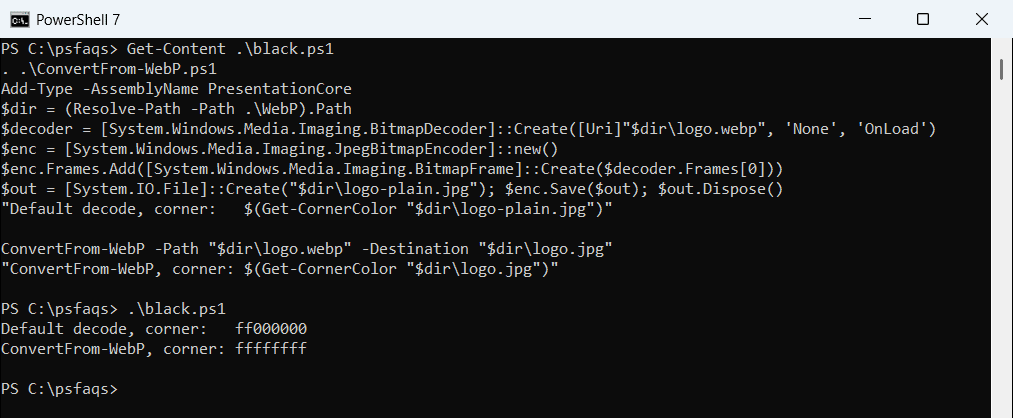
ff000000 is black and ffffffff is white. PreservePixelFormat keeps the alpha channel, so the white canvas shows through. IgnoreImageCache matters too: WPF caches decoded files by path, and without it the second decode returned the cached copy without alpha.
Convert every WebP in a folder
Loop over the folder and save a JPG next to each WebP. Quality 85 is a good balance for product photos on a website:
. .\ConvertFrom-WebP.ps1
Get-ChildItem -Path .\WebP\Products -Filter *.webp | ForEach-Object {
    $jpg = [System.IO.Path]::ChangeExtension($_.FullName, '.jpg')
    ConvertFrom-WebP -Path $_.FullName -Destination $jpg -Quality 85
    '{0,-20} -> {1}' -f $_.Name, (Split-Path -Path $jpg -Leaf)
}
Output:
desk-thumb.webp      -> desk-thumb.jpg
standing-desk.webp   -> standing-desk.jpg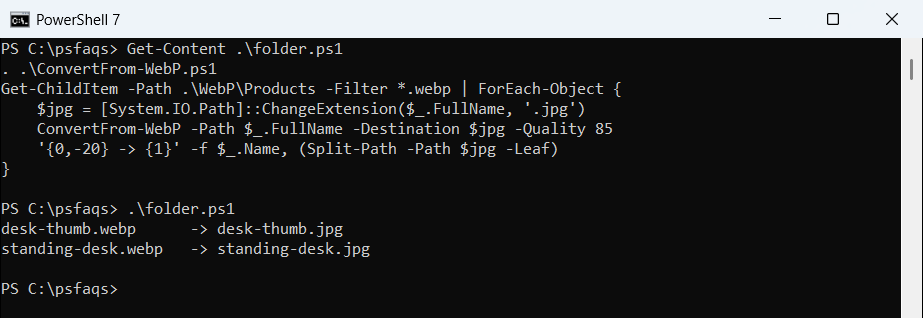
The WebP files stay untouched. WPF only exists on Windows, so this won’t run in PowerShell 7 on Linux or macOS. For more loops over files, see PowerShell foreach file in a folder.