
To keep your screen active with a PowerShell script, ask Windows directly with the SetThreadExecutionState API. It keeps the display and PC awake while the script runs, and everything goes back to normal when it stops:
Add-Type -Namespace Win32 -Name Power -MemberDefinition '[DllImport("kernel32.dll")] public static extern uint SetThreadExecutionState(uint esFlags);'
[void][Win32.Power]::SetThreadExecutionState([uint32]2147483651)   # continuous + system + display
Read-Host 'Screen stays on. Press Enter to stop'
That’s better than the common trick of pressing a fake key every minute. Below I check your current timeouts, test the API, give you a full timed script, and explain when the key-press method still makes sense.
Check when your screen turns off
powercfg shows the current display and sleep timeouts without changing anything. This small function converts the values to minutes:
function Get-PowerTimeout([string]$Subgroup, [string]$Setting) {
    $text = powercfg /query SCHEME_CURRENT $Subgroup $Setting | Out-String
    $ac = [Convert]::ToInt32(([regex]::Match($text, 'Current AC Power Setting Index: 0x(\w+)')).Groups[1].Value, 16)
    $dc = [Convert]::ToInt32(([regex]::Match($text, 'Current DC Power Setting Index: 0x(\w+)')).Groups[1].Value, 16)
    '{0} min plugged in, {1} min on battery' -f ($ac / 60), ($dc / 60)
}
"Turn off display after: $(Get-PowerTimeout SUB_VIDEO VIDEOIDLE)"
"Sleep after:            $(Get-PowerTimeout SUB_SLEEP STANDBYIDLE)"
Output:
Turn off display after: 5 min plugged in, 3 min on battery
Sleep after:            5 min plugged in, 3 min on battery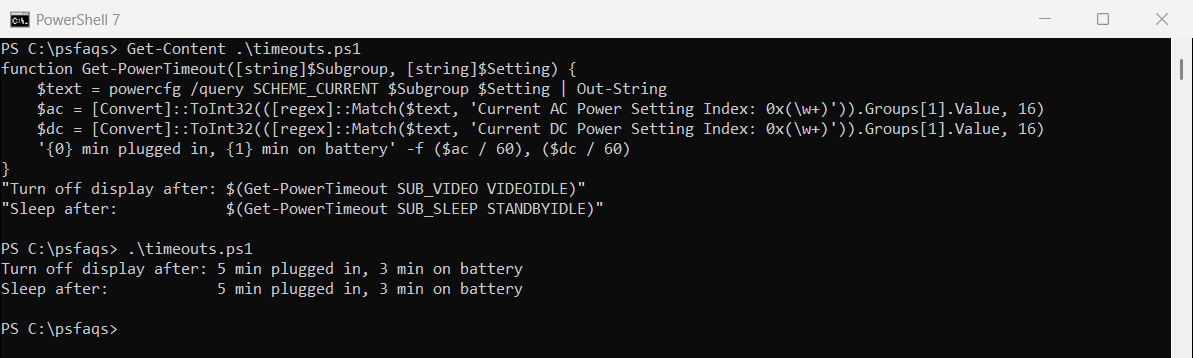
If these are short, the script below keeps you going without changing them. Microsoft lists every powercfg option in its powercfg command-line reference.
Keep the screen awake with SetThreadExecutionState
Three flags do the work: ES_CONTINUOUS keeps the request active, ES_SYSTEM_REQUIRED blocks sleep, and ES_DISPLAY_REQUIRED keeps the screen on. Here I set them, wait, and release them:
Add-Type -Namespace Win32 -Name Power -MemberDefinition @'
[DllImport("kernel32.dll")] public static extern uint SetThreadExecutionState(uint esFlags);
'@
$ES_CONTINUOUS       = [uint32]2147483648
$ES_SYSTEM_REQUIRED  = [uint32]1
$ES_DISPLAY_REQUIRED = [uint32]2

$flags = $ES_CONTINUOUS -bor $ES_SYSTEM_REQUIRED -bor $ES_DISPLAY_REQUIRED
[void][Win32.Power]::SetThreadExecutionState($flags)
'Keeping the PC and display awake (flags 0x{0:X8})' -f $flags
Start-Sleep -Seconds 2

$previous = [Win32.Power]::SetThreadExecutionState($ES_CONTINUOUS)
'Released. The request that was active: 0x{0:X8}' -f $previous
Output:
Keeping the PC and display awake (flags 0x80000003)
Released. The request that was active: 0x80000003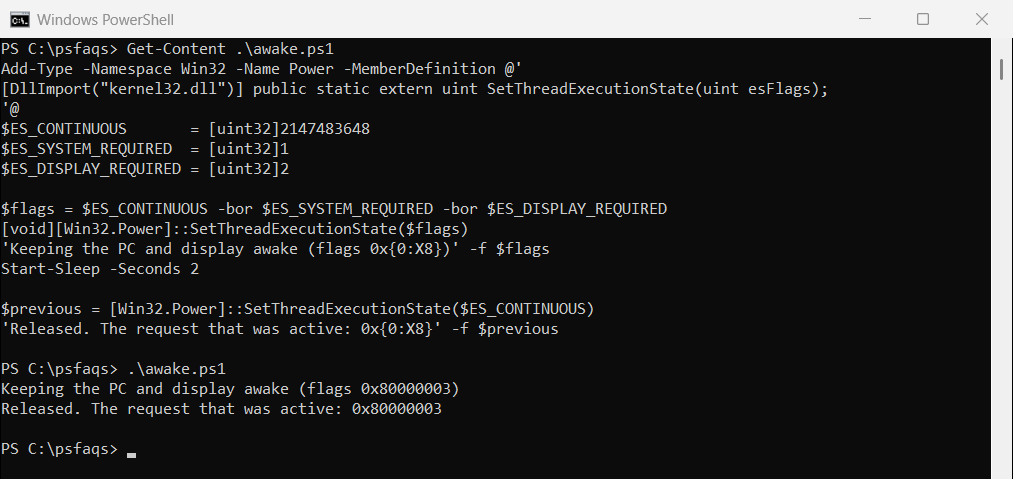
I write the flags as [uint32] numbers because 0x80000000 is too large for a signed hex literal in Windows PowerShell 5.1. The SetThreadExecutionState reference explains each flag.
What it doesn’t do
Microsoft notes that this API doesn’t stop the screen saver. It also can’t override a lock-screen policy your company sets, so a managed PC may still lock after a fixed idle time.
A complete keep-awake script with a time limit
Save this as Keep-Awake.ps1. It keeps the screen on for as many minutes as you choose, shows the end time, and always releases the request, even when you press Ctrl+C:
param([int]$Minutes = 60)

Add-Type -Namespace Win32 -Name Power -MemberDefinition @'
[DllImport("kernel32.dll")] public static extern uint SetThreadExecutionState(uint esFlags);
'@
$continuous = [uint32]2147483648
$end = (Get-Date).AddMinutes($Minutes)

try {
    [void][Win32.Power]::SetThreadExecutionState($continuous -bor 3)
    Write-Host "Keeping the screen on until $($end.ToString('h:mm tt')). Press Ctrl+C to stop."
    while ((Get-Date) -lt $end) { Start-Sleep -Seconds 30 }
}
finally {
    [void][Win32.Power]::SetThreadExecutionState($continuous)
    Write-Host 'Normal sleep settings are back.'
}
Run it with .\Keep-Awake.ps1 -Minutes 90. If scripts are blocked, see setting the execution policy.
The fake key press method
Many older scripts press a key every minute with SendKeys. F15 is a popular choice because almost no app uses it:
$shell = New-Object -ComObject WScript.Shell
while ($true) { $shell.SendKeys('{F15}'); Start-Sleep -Seconds 60 }
It works because Windows sees real input, which also resets idle-based lock timers. The downside is that keys go to whatever window has focus, so use it only when the API method isn’t enough.
Other ways to keep your PC awake
Microsoft’s free PowerToys includes Awake, which does the same thing from the system tray. You can also change the timeouts permanently, for example powercfg /change monitor-timeout-ac 30 sets the display timeout to 30 minutes when plugged in.
Frequently Asked Questions
How do I keep my screen on with PowerShell?
Call the Windows SetThreadExecutionState API with the continuous, system and display flags. The screen stays on until the script ends.
Is SetThreadExecutionState better than SendKeys?
Usually, yes. It doesn’t type into your apps and it resets automatically when PowerShell exits.
Why does my PC still lock with the script running?
SetThreadExecutionState doesn’t reset idle-based lock timers set by company policy. The key press method does, if your policy allows it.
How do I check my screen timeout with PowerShell?
Run powercfg /query SCHEME_CURRENT SUB_VIDEO VIDEOIDLE. The AC and DC values are in seconds, in hex.
Does keeping the screen awake change my power settings?
No. The API request only lasts while the script runs. powercfg /change is the command that changes settings permanently.
Related automation tips:
- Start-Process examples
- Why PowerShell keeps popping up
- Run a script with parameters
- Set the execution policy

Bijay Kumar is an esteemed author and the mind behind PowerShellFAQs.com, where he shares his extensive knowledge and expertise in PowerShell, with a particular focus on SharePoint projects. Recognized for his contributions to the tech community, Bijay has been honored with the prestigious Microsoft MVP award. With over 15 years of experience in the software industry, he has a rich professional background, having worked with industry giants such as HP and TCS. His insights and guidance have made him a respected figure in the world of software development and administration. Read more.