
To install RSAT in Windows 11 using PowerShell, open PowerShell as administrator and run Add-WindowsCapability with the name of the tool you need. RSAT is built into Windows 11 as optional features, so there’s nothing to download:
Add-WindowsCapability -Online -Name Rsat.ActiveDirectory.DS-LDS.Tools~~~~0.0.1.0That line adds the Active Directory tools, including the ActiveDirectory PowerShell module. Below I cover the checks to run first, how to list and install every tool, and how to fix the errors people hit most.
Before you start: edition and admin rights
RSAT works only on Windows 11 Pro, Enterprise and Education. Microsoft doesn’t support it on Home editions. Check yours first:
$os = Get-CimInstance -ClassName Win32_OperatingSystem

"Edition: $($os.Caption)"
"Build:   $($os.BuildNumber)"
"RSAT can be installed on this edition: $($os.Caption -notmatch 'Home')"
Output:
Edition: Microsoft Windows 11 Enterprise
Build:   26200
RSAT can be installed on this edition: True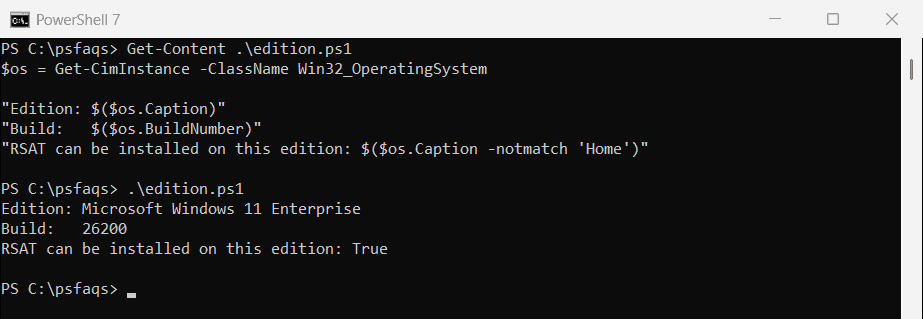
Next, confirm the window is running as administrator. The RSAT cmdlets need an elevated session:
$identity = [Security.Principal.WindowsIdentity]::GetCurrent()
$principal = [Security.Principal.WindowsPrincipal]$identity
$isAdmin = $principal.IsInRole([Security.Principal.WindowsBuiltInRole]::Administrator)

"Running as administrator: $isAdmin"
Output:
Running as administrator: FalseTo open one, right-click Windows Terminal or PowerShell in the Start menu and choose Run as administrator. Running PowerShell as a different user covers other ways to elevate.
The error you get without admin rights
Every RSAT command fails the same way in a normal window. If you see this message, close the window and open an elevated one:
try {
    Get-WindowsCapability -Name 'Rsat.ActiveDirectory*' -Online -ErrorAction Stop
}
catch { "Failed. $($_.Exception.Message)" }
Output:
Failed. The requested operation requires elevation.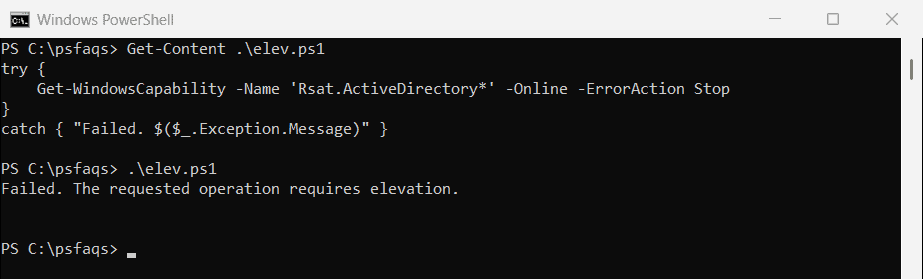
Step 1: List the RSAT tools
Get-WindowsCapability lists every RSAT tool and whether it’s installed. Installed means it’s already there, and NotPresent means you can add it:
Get-WindowsCapability -Name RSAT* -Online |
    Select-Object -Property DisplayName, Name, State
The Name column is what you pass to Add-WindowsCapability. These are the ones admins install most:
Rsat.ActiveDirectory.DS-LDS.Tools~~~~0.0.1.0for Active Directory Users and Computers and the ActiveDirectory moduleRsat.GroupPolicy.Management.Tools~~~~0.0.1.0for the Group Policy Management ConsoleRsat.Dns.Tools~~~~0.0.1.0for DNS Manager and the DnsServer moduleRsat.DHCP.Tools~~~~0.0.1.0for the DHCP console and the DhcpServer moduleRsat.ServerManager.Tools~~~~0.0.1.0for Server Manager
Step 2: Install the tools you need
Install one tool by name, as shown at the top. To install every RSAT tool that isn’t installed yet, pipe the list into Add-WindowsCapability:
Get-WindowsCapability -Name RSAT* -Online |
    Where-Object State -EQ 'NotPresent' |
    Add-WindowsCapability -Online
Installing everything takes several minutes, because Windows downloads each tool from Windows Update.
RSAT comes through Windows Update, so if it’s blocked, see installing Windows updates with PowerShell.
Step 3: Check that it worked
An installed tool brings its PowerShell module with it. Before installing, none of these modules exist on my test PC:
foreach ($name in 'ActiveDirectory', 'GroupPolicy', 'DnsServer', 'DhcpServer') {
    '{0,-16} installed: {1}' -f $name, [bool](Get-Module -ListAvailable -Name $name)
}
Output:
ActiveDirectory  installed: False
GroupPolicy      installed: False
DnsServer        installed: False
DhcpServer       installed: False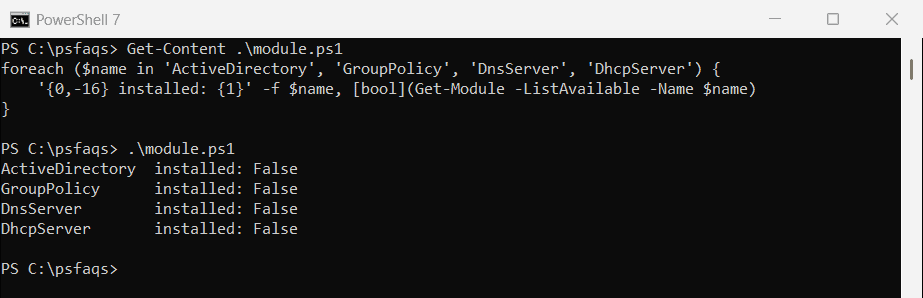
After installing, the same check shows True, and you can load the module and run a quick test against your domain:
Import-Module ActiveDirectory
Get-ADDomain | Select-Object -Property DNSRoot, DomainMode
Listing installed modules shows more ways to see what’s on a machine.
Fix: error 0x800f0954 on work PCs
On PCs that get updates from a WSUS server, Add-WindowsCapability often fails with error 0x800f0954. The optional feature isn’t on WSUS, and Windows isn’t allowed to fetch it from Windows Update.
Ask your admin, or open the Local Group Policy Editor. Under Computer Configuration, Administrative Templates, System, enable “Specify settings for optional component installation and component repair”. Then select the option to download repair content and optional features directly from Windows Update.
Run gpupdate /force, then try the install again.
Remove RSAT tools
Remove-WindowsCapability takes the same names. Run it in an elevated window:
Remove-WindowsCapability -Online -Name Rsat.Dns.Tools~~~~0.0.1.0Windows may ask for a restart to finish removing a tool. Microsoft’s RSAT overview lists what each tool includes.
Frequently Asked Questions
How do I install RSAT in Windows 11 with PowerShell?
Open PowerShell as administrator and run Add-WindowsCapability -Online -Name Rsat.ActiveDirectory.DS-LDS.Tools~~~~0.0.1.0, or pipe Get-WindowsCapability RSAT* into it to install everything.