
To check if a string contains only numbers in PowerShell, match it against an anchored regex. This returns True only when every character is a digit from 0 to 9:
$value -match '^[0-9]+$'I use [0-9] instead of \d on purpose. Below are the traps, with real output from PowerShell 7 and 5.1.
Check if a string contains only numbers with -match
Here are four would-be US ZIP codes. The ^ and $ anchors make the pattern cover the whole string:
$zips = '78701', '8020a', '98101', '1-800'
foreach ($zip in $zips) {
    '{0,-6} only digits: {1}' -f $zip, ($zip -match '^[0-9]+$')
}
Output:
78701  only digits: True
8020a  only digits: False
98101  only digits: True
1-800  only digits: False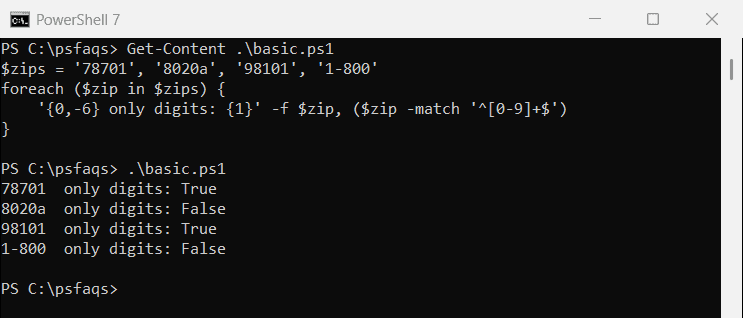
Without anchors, ‘8020a’ would pass. My guide to the -match operator covers -notmatch too.
Why does \d match digits that aren’t 0-9?
In .NET regex, \d means any Unicode decimal digit. So Arabic-Indic or fullwidth digits pass a \d check:
$arabic    = [string][char]0x0663 + [char]0x0664    # Arabic-Indic 3 and 4
$fullwidth = [string][char]0xFF11 + [char]0xFF12    # fullwidth 1 and 2

"Arabic digits,    \d:    $($arabic -match '^\d+$')"
"Arabic digits,    [0-9]: $($arabic -match '^[0-9]+$')"
"Fullwidth digits, \d:    $($fullwidth -match '^\d+$')"
"Fullwidth digits, [0-9]: $($fullwidth -match '^[0-9]+$')"
Output:
Arabic digits,    \d:    True
Arabic digits,    [0-9]: False
Fullwidth digits, \d:    True
Fullwidth digits, [0-9]: False
That breaks anything expecting ASCII digits. [0-9] accepts exactly ten characters. The PowerShell regex tutorial covers the other shorthand classes.
^\d+$ vs \A[0-9]+\z: the trailing newline trap
The $ anchor also matches just before a final newline, so a value from a file can pass:
$id = "12345`n"     # a value with a trailing newline

'^\d+$      : ' + ($id -match '^\d+$')
'\A[0-9]+\z : ' + ($id -match '\A[0-9]+\z')
'TrimEnd()  : ' + ($id.TrimEnd() -match '\A[0-9]+\z')
Output:
^\d+$      : True
\A[0-9]+\z : False
TrimEnd()  : True
\A means the very start and \z the very end, with no newline exception. Use them, or remove the newline from the string first.
Empty strings, spaces, negatives and decimals
Edge cases are where digit checks break:
'Empty, ^[0-9]+$:      ' + ('' -match '^[0-9]+$')
'Empty, ^[0-9]*$:      ' + ('' -match '^[0-9]*$')
'Empty, -notmatch \D:  ' + ('' -notmatch '\D')
"Spaces ' 123 ':       " + (' 123 ' -match '^[0-9]+$')
"Negative '-42':       " + ('-42' -match '^-?[0-9]+$')
"Decimal '19.99':      " + ('19.99' -match '^-?[0-9]+(\.[0-9]+)?$')
Output:
Empty, ^[0-9]+$:      False
Empty, ^[0-9]*$:      True
Empty, -notmatch \D:  True
Spaces ' 123 ':       False
Negative '-42':       True
Decimal '19.99':      True
With * an empty string passes. The -notmatch ‘\D’ shortcut has the same hole, because an empty string has no non-digits. Spaces fail, so trim the string when people type values by hand.
Use [int]::TryParse when you need the number
TryParse answers a different question: can this text become an [int]?
$n = 0
foreach ($s in '12345', ' 42 ', '+42', '9876543210') {
    '{0,-12} [int]: {1}' -f "'$s'", [int]::TryParse($s, [ref]$n)
}

$big = [long]0
"'9876543210' [long]: $([long]::TryParse('9876543210', [ref]$big)) -> $big"
Output:
'12345'      [int]: True
' 42 '       [int]: True
'+42'        [int]: True
'9876543210' [int]: False
'9876543210' [long]: True -> 9876543210
It accepted ‘ 42 ‘ and ‘+42’, which a digit check rejects, and failed on 9876543210 because that’s above the [int] maximum of 2,147,483,647. [long] handled it. See converting a string to an int for casts.
Decimal parsing also depends on culture. On a German server, the period is a thousands separator:
$style = [Globalization.NumberStyles]::Number
$price = [decimal]0
foreach ($c in [cultureinfo]'de-DE', [cultureinfo]::InvariantCulture) {
    $ok = [decimal]::TryParse('19.99', $style, $c, [ref]$price)
    '{0,-9} {1} -> {2}' -f $c.Name, $ok, $price
}
Output:
de-DE     True -> 1999
          True -> 19.99
Pass [cultureinfo]::InvariantCulture for file and API data.
Why -as [int] isn’t a digit check
The -as operator converts loosely. Here it is in Windows PowerShell 5.1:
foreach ($s in '0x1F', '12.5', ' 42 ', '1kb', '12a') {
    $v = $s -as [int]
    if ($null -eq $v) { $v = 'null' }
    '{0,-7} -as [int] = {1}' -f "'$s'", $v
}
Output:
'0x1F'  -as [int] = 31
'12.5'  -as [int] = 12
' 42 '  -as [int] = 42
'1kb'   -as [int] = 1024
'12a'   -as [int] = null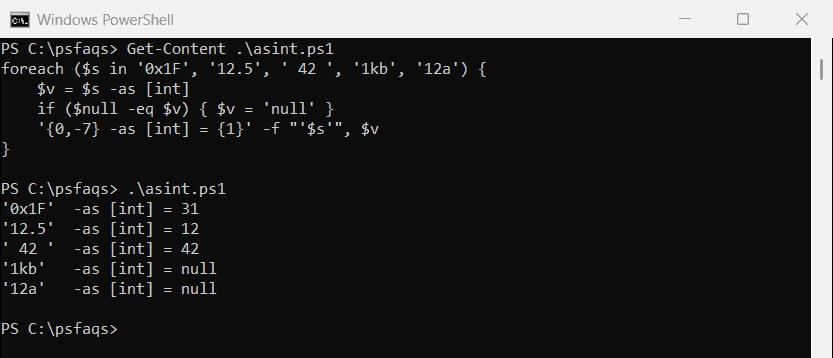
PowerShell 7 goes further: ‘1kb’ -as [int] returns 1024, because it reads kb like a numeric literal, while 5.1 returns $null. Use -as for conversion, not validation.