
Our Denver office sends three city sales folders to an auditor monthly, and Compress-Archive can’t add a password. To use the 7-Zip command line in PowerShell, call 7z.exe by its full path with the & operator:
& 'C:\Program Files\7-Zip\7z.exe' a -tzip C:\psfaqs\Archives\Austin.zip C:\psfaqs\SalesData\Austin\*In this tutorial, I’ll walk you through the 7-Zip command line from PowerShell: archives, passwords, exit codes and the quoting traps that differ between PowerShell 7 and 5.1.
Quick answer: these are the arguments you’ll use most:
| Task | 7z.exe arguments |
|---|---|
| Create a zip | a -tzip out.zip C:\folder\* |
| Extract with folders | x archive.7z -oC:\dest -y |
| List or test | l archive.7z / t archive.7z |
| Add a password | -pSecret -mhe=on, then check $LASTEXITCODE |
How to call 7z.exe from PowerShell
The 7-Zip installer doesn’t add its folder to PATH, so typing 7z fails with “not recognized”. Keep the full path in a variable and run it with the call operator. Every example below starts with this line:
$7z = 'C:\Program Files\7-Zip\7z.exe'A quoted path alone is only a string, hence the &. If 7-Zip lives elsewhere, here’s how to find the location of an executable.
Or run $env:Path += ';C:\Program Files\7-Zip' and type 7z until the window closes. To keep it, set the environment variable at the user level.
Create a zip or 7z archive with the a command
The a (add) command takes the archive name first, then the files. -tzip picks the zip format; without it, you get 7-Zip’s own .7z format:
$7z = 'C:\Program Files\7-Zip\7z.exe'
& $7z a -tzip C:\psfaqs\Archives\Denver.zip C:\psfaqs\SalesData\Denver\*
Output:
7-Zip 24.05 (x64) : Copyright (c) 1999-2024 Igor Pavlov : 2024-05-14

Scanning the drive:
2 files, 110811 bytes (109 KiB)

Creating archive: C:\psfaqs\Archives\Denver.zip

Add new data to archive: 2 files, 110811 bytes (109 KiB)


Files read from disk: 2
Archive size: 11530 bytes (12 KiB)
Everything is Ok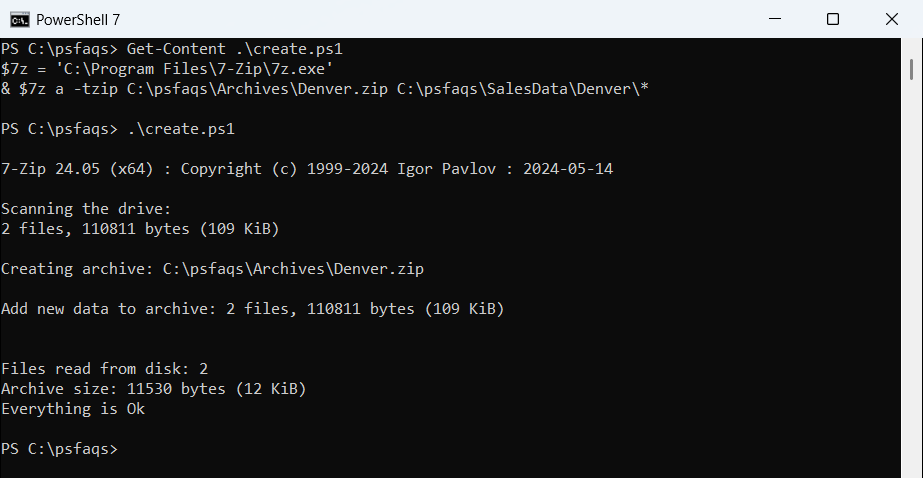
To compare sizes in a script, get the size of a file with Get-Item.
Set the compression level with -mx
-mx=1 is fastest, 5 is the default and 9 is ultra (0 only stores). I tried each on the same Denver folder:
$7z = 'C:\Program Files\7-Zip\7z.exe'
foreach ($type in 'zip', '7z') {
    foreach ($level in 1, 5, 9) {
        $file = "C:\psfaqs\Archives\Denver-mx$level.$type"
        & $7z a "-t$type" "-mx=$level" $file C:\psfaqs\SalesData\Denver\* -bso0 -bsp0
        '{0,-17} {1,8:N0} bytes' -f (Split-Path $file -Leaf), (Get-Item $file).Length
    }
}
Output:
Denver-mx1.zip      13,530 bytes
Denver-mx5.zip      11,530 bytes
Denver-mx9.zip      10,533 bytes
Denver-mx1.7z        3,182 bytes
Denver-mx5.7z        3,184 bytes
Denver-mx9.7z        6,418 bytes
.7z beat zip easily, yet -mx=9 came out larger than -mx=1 for .7z on this repetitive CSV. Test levels on your own data.
List, test and extract archives (l, t, x and e)
The l command lists the contents, and t checks every file’s CRC without extracting:
$7z = 'C:\Program Files\7-Zip\7z.exe'
& $7z l C:\psfaqs\Archives\Austin.zip | Select-String '\.csv|\.txt|files'
& $7z t C:\psfaqs\Archives\Austin.zip | Select-String 'Everything i