
Every Friday, the Portland, Seattle and Boise stores of Cascade Outdoor Supply email Tom Baker a zip of their weekly reports. To unzip a file in PowerShell, run Expand-Archive with the zip’s path and a destination folder:
Expand-Archive -Path .\Inbox\Store-Portland-2026-10-16.zip -DestinationPath .\Reports\PortlandIn this tutorial, I’ll turn that one line into Tom’s weekly script and cover each PowerShell unzip file task he hit on the way: overwriting, peeking inside a zip, pulling out one file, and looping over a folder.
I ran each step in PowerShell 7.6 and Windows PowerShell 5.1, and they differ more than you’d expect.
What the finished unzip script does
Here’s the goal. Expand-StoreReports.ps1 finds every zip in the Inbox folder and unzips each one into a folder named after the store:
.\Expand-StoreReports.ps1Output:
Store-Boise-2026-10-16.zip -> C:\psfaqs\Reports\Boise (3 files)
Store-Portland-2026-10-16.zip -> C:\psfaqs\Reports\Portland (3 files)
Store-Seattle-2026-10-16.zip -> C:\psfaqs\Reports\Seattle (3 files)
Windows PowerShell 5.1 printed the same three lines. The script finds the zips with the Get-ChildItem cmdlet and runs Expand-Archive once per file.
Step 1: Unzip a file with Expand-Archive
Expand-Archive ships with PowerShell 5.0 and later, so there’s nothing to install. Give it the zip in -Path and the folder to fill in -DestinationPath, then list what came out:
Expand-Archive -Path .\Inbox\Store-Portland-2026-10-16.zip -DestinationPath .\Reports\Portland
Get-ChildItem -Path .\Reports\Portland -Name
Output:
notes.txt
returns-2026-10-16.csv
sales-2026-10-16.csv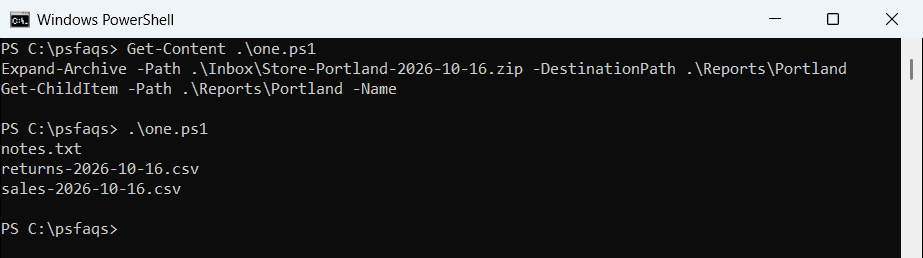
The Reports\Portland folder didn’t exist yet. Expand-Archive created it, so you don’t need to create the folder first.
Unzip to a folder named after the zip
Leave out -DestinationPath, and Expand-Archive creates a folder with the zip’s name in the current location:
Set-Location -Path C:\psfaqs
Expand-Archive -Path .\Inbox\Store-Portland-2026-10-16.zip
Get-ChildItem -Path .\Store-Portland-2026-10-16 -Name
Output:
notes.txt
returns-2026-10-16.csv
sales-2026-10-16.csv
If the zip name has square brackets, such as Draft[v1].zip, use -LiteralPath instead of -Path. Otherwise, PowerShell reads the brackets as a wildcard pattern.
Step 2: Overwrite existing files with -Force
The second Friday, Tom ran the same line again and got an error, because the files were already there:
try {
    Expand-Archive -Path .\Inbox\Store-Portland-2026-10-16.zip -DestinationPath .\Reports\Portland -ErrorAction Stop
}
catch {
    "Failed. $($_.Exception.Message)"
}
Output:
Failed. Failed to create file 'C:\psfaqs\Reports\Portland\sales-2026-10-16.csv' while expanding the archive file 'C:\psfaqs\Inbox\Store-Portland-2026-10-16.zip' contents as the file 'C:\psfaqs\Reports\Portland\sales-2026-10-16.csv' already exists. Use the -Force paramete