
To convert a string to a script block in PowerShell, use [scriptblock]::Create(). Then run it with the call operator &:
$sb = [scriptblock]::Create('Get-Date -Format yyyy-MM-dd')
& $sb
It’s useful when the code comes from a config file or is built from settings, like a filter. Below I cover parameters, the quoting trap, filters, syntax checks and the security risk you need to know about.
Every example ran the same in PowerShell 7 and Windows PowerShell 5.1.
Why a simple cast doesn’t work
PowerShell converts strings to most types with a cast, but not to a script block:
try   { $sb = [scriptblock]'Get-Date' }
catch { "Failed. $($_.Exception.Message)" }
Output:
Failed. Cannot convert the "Get-Date" value of type "System.String" to type "System.Management.Automation.ScriptBlock".That’s on purpose, so a plain string can’t turn into code by accident. Use Create() instead. For other conversions that do work with a cast, see converting a string to an integer.
Create and run a script block from a string
Put a param() block at the start of the string to give the script block parameters, just like a function:
$text = 'param($Price, $Quantity) $Price * $Quantity'
$sb = [scriptblock]::Create($text)

"With &:       $(& $sb 19.99 3)"
"With Invoke:  $($sb.Invoke(4.5, 10))"
"Type:         $($sb.GetType().FullName)"
Output:
With &:       59.97
With Invoke:  45
Type:         System.Management.Automation.ScriptBlock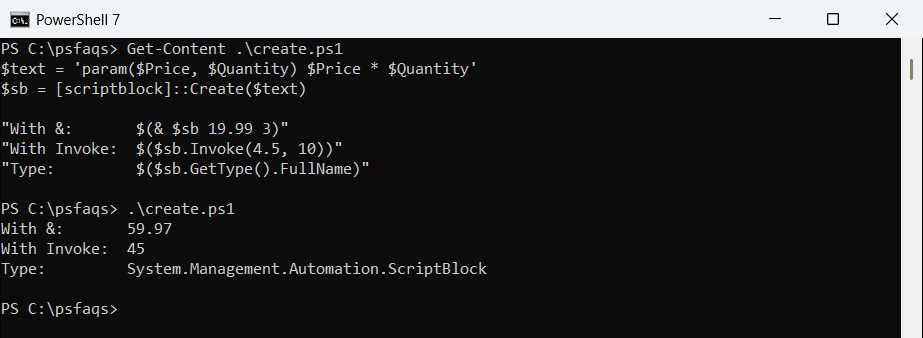
& is the usual way to run it. Invoke() returns a collection, which matters when you check the result type. $ExecutionContext.InvokeCommand.NewScriptBlock($text) does the same as Create(). More about parameters is in functions in PowerShell.
Single vs double quotes decide when variables are read
This is the most common mistake. In double quotes, PowerShell fills in variables while it builds the string. In single quotes, the variable stays in the code and is read when the script block runs:
$city = 'Austin'
$early = [scriptblock]::Create("'Shipping to $city'")      # double quotes: $city filled in now
$late  = [scriptblock]::Create('"Shipping to $city"')      # single quotes: $city read when it runs

$city = 'Denver'
"Early: $(& $early)"
"Late:  $(& $late)"
Output:
Early: Shipping to Austin
Late:  Shipping to Denver
Pick double quotes when you want to lock in a value, and single quotes when the script block should see the current value. The rules are covered in single vs double quotes in PowerShell.
Build a Where-Object filter from a string
A typical use is a filter that depends on settings. Escape $_ with a backtick so it stays in the code, and let $min fill in:
$orders = @(
    [pscustomobject]@{ Id = 'ORD-1001'; City = 'Austin'; Total = 250 }
    [pscustomobject]@{ Id = 'ORD-1002'; City = 'Denver'; Total = 75 }
    [pscustomobject]@{ Id = 'ORD-1003'; City = 'Austin'; Total = 1200 }
)

$min = 200
$filter = [scriptblock]::Create("`$_.Total -ge $min -and `$_.City -eq 'Austin'")
"Filter: $filter"
$orders | Where-Object -FilterScript $filter | Format-Table -AutoSize
Output:
Filter: $_.Total -ge 200 -and $_.City -eq 'Austin'

Id       City   Total
--       ----   -----
ORD-1001 Austin   250
ORD-1003 Austin  1200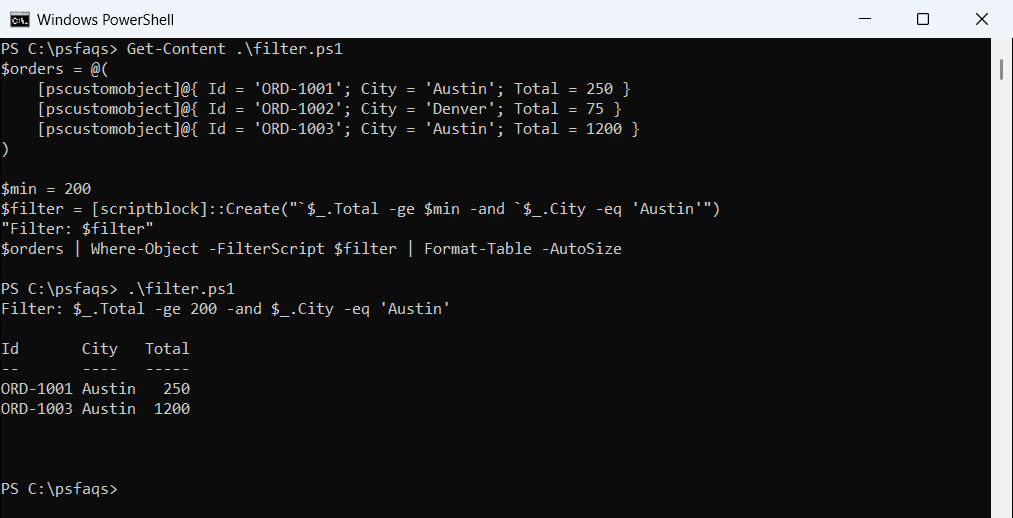
Printing the script block shows the exact code, which makes debugging easy. More filter patterns are in PowerShell Where-Object.
Check the code for syntax errors first
If the string isn’t valid PowerShell, Create() throws a parse error. To report problems without throwing, run the text through the PowerShell parser:
function Test-ScriptText ([string]$Text) {
    $errors = $null
    $null = [System.Management.Automation.Language.Parser]::ParseInput($Text, [ref]$null, [ref]$errors)
    if ($errors) { "Invalid: $($errors[0].Message)" } else { 'Valid' }
}
Test-ScriptText 'Get-ChildItem -Path C:\Reports | Measure-Object'
Test-ScriptText 'if ($total -gt 100) { "big order"'
Output:
Valid
Invalid: Missing closing '}' in statement block or type definition.
ParseInput only checks the syntax and never runs anything, so it’s safe on any text. To handle errors from Create() directly, wrap it in try and catch.
Never build script blocks from user input
Anything in the string becomes code. Here a user typed a command into a “minimum total” box, and it ran once for every order:
$orders = @(
    [pscustomobject]@{ Id = 'ORD-1001'; City = 'Austin'; Total = 250 }
    [pscustomobject]@{ Id = 'ORD-1002'; City = 'Denver'; Total = 75 }
    [pscustomobject]@{ Id = 'ORD-1003'; City = 'Austin'; Total = 1200 }
)

$userInput = '100; Write-Host "This ran too"'
$filter = [scriptblock]::Create("`$_.Total -gt $userInput")
"Filter: $filter"
$orders | Where-Object -FilterScript $filter | Out-Null

try   { $min = [int]$userInput }
catch { "Rejected: the input is not a number" }
Output:
Filter: $_.Total -gt 100; Write-Host "This ran too"
This ran too
This ran too
This ran too
Rejected: the input is not a number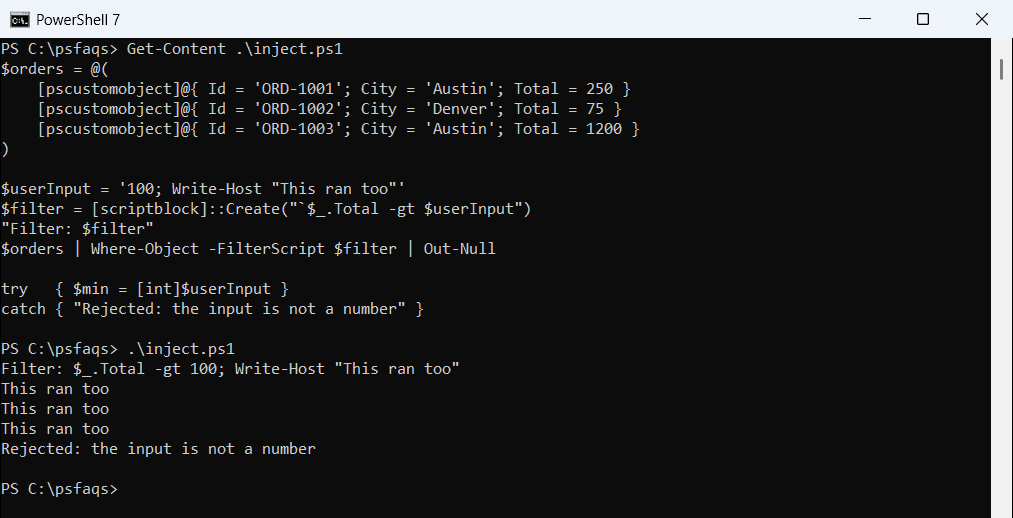
My demo only prints a message, but an attacker could run any command with your permissions. Convert input to the type you expect, like [int], before it goes anywhere near Create().
A safer way: GetNewClosure
Often you don’t need a string at all. Write the script block normally and capture the variable with GetNewClosure():