
To find a file by name in PowerShell, use Get-ChildItem with -Filter for the name and -Recurse to search every subfolder. This finds every file called notes.txt under a projects folder:
Get-ChildItem -Path C:\psfaqs\Projects -Filter notes.txt -Recurse |
    Select-Object -ExpandProperty FullName
Output:
C:\psfaqs\Projects\Archive\notes.txt
C:\psfaqs\Projects\Budget\notes.txt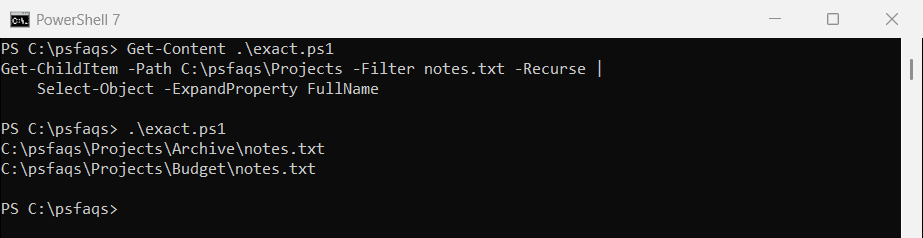
FullName gives you the complete path of each match. Name matching isn’t case-sensitive, so NOTES.TXT would find the same files.
My test folder has budget spreadsheets, reports and an archive. I ran every example in PowerShell 7.6 and Windows PowerShell 5.1, and one of them behaved very differently.
Search with wildcards
* matches any number of characters, so *budget* finds anything with “budget” in the name, folders included:
Get-ChildItem -Path C:\psfaqs\Projects -Filter *budget* -Recurse |
    Select-Object -ExpandProperty Name
Output:
Budget
budget-prior.xlsx
budget-2026.xlsx
budget-old.xls
Add -File to leave the folders out. ? matches exactly one character, so report10.txt isn’t a match here:
Get-ChildItem -Path C:\psfaqs\Projects -Filter report?.txt -Recurse |
    Select-Object -ExpandProperty Name
Output:
report1.txt
report2.txt
reportA.txt
To search by type instead of name, see finding all files with a specific extension.
Why does -Filter *.xls also find .xlsx files?
-Filter is fast because Windows does the matching, but that also means it follows old Windows rules. Here’s the same search in PowerShell 7:
Get-ChildItem -Path C:\psfaqs\Projects -Filter *.xls -Recurse |
    Select-Object -ExpandProperty Name
Output in PowerShell 7:
budget-old.xlsAnd in Windows PowerShell 5.1, which returned the .xlsx files too:
budget-prior.xlsx
budget-old.xls
budget-2026.xlsx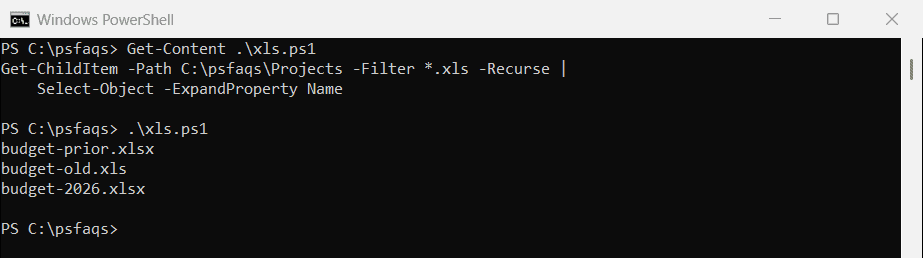
Windows gives long file names a short 8.3 name for old programs, and budget-2026.xlsx is BUDGET~1.XLS on my PC. 5.1 matched the short names. To be safe in both versions, check the extension afterward:
Get-ChildItem -Path C:\psfaqs\Projects -Filter *.xls -Recurse |
    Where-Object Extension -eq '.xls' |
    Select-Object -ExpandProperty Name
Output:
budget-old.xlsFilter vs Include for patterns
-Filter supports only * and ?. For ranges like [0-9], use -Include, which uses PowerShell’s own wildcards:
"With -Filter:  $((Get-ChildItem -Path C:\psfaqs\Projects -Filter 'report[0-9].txt' -Recurse).Name -join ', ')"
"With -Include: $((Get-ChildItem -Path C:\psfaqs\Projects -Include 'report[0-9].txt' -Recurse).Name -join ', ')"
Output:
With -Filter:
With -Include: report1.txt, report2.txt![PowerShell Get-ChildItem -Filter vs -Include with a [0-9] wildcard range](https://powershellfaqs.com/wp-content/uploads/2026/09/powershell-get-childitem-filter-vs-include-wildcards.png)
-Include also takes several patterns at once, which -Filter can’t:
Get-ChildItem -Path C:\psfaqs\Projects -Include *.docx, *.xlsx -Recurse |
    Select-Object -ExpandProperty Name
Output:
budget-prior.xlsx
budget-2026.xlsx
Q3-summary.docx
-Include is slower on big folders, because PowerShell filters after Windows returns everything. Use -Filter when one simple pattern is enough.
Use a regular expression for exact rules
When wildcards aren’t precise enough, pipe the files to Where-Object and use -match. This finds reports with a number, of any length:
Get-ChildItem -Path C:\psfaqs\Projects -File -Recurse |
    Where-Object Name -match '^report\d+\.txt$' |
    Select-Object -ExpandProperty Name
Output:
report1.txt
report10.txt
report2.txt
See PowerShell Where-Object for more ways to filter the results.
Control how deep the search goes
-Recurse searches every level. -Depth limits it, where 1 means the folder and one level of subfolders:
"-Depth 1: $((Get-ChildItem -Path C:\psfaqs\Projects -Filter *.xlsx -Recurse -Depth 1).Name -join ', ')"
"No limit:  $((Get-ChildItem -Path C:\psfaqs\Projects -Filter *.xlsx -Recurse).Name -join ', ')"
Output:
-Depth 1: budget-2026.xlsx
No limit:  budget-prior.xlsx, budget-2026.xlsx
The archived file is two levels down, so -Depth 1 skipped it. On a big file share, a depth limit can save minutes.
Include hidden files
Hidden files, like the lock file Office creates while a document is open, don’t show up unless you add -Force:
"Without -Force: $((Get-ChildItem -Path C:\psfaqs\Projects\Reports -Filter *.docx).Name -join ', ')"
"With -Force:    $((Get-ChildItem -Path C:\psfaqs\Projects\Reports -Filter *.docx -Force).Name -join ', ')"
Output in PowerShell 7:
Without -Force: Q3-summary.docx
With -Force:    ~$Q3-summary.docx, Q3-summary.docx
Get only the names or relative paths
-Name returns plain strings with the path relative to the folder you searched, which is easier to read in a report:
Get-ChildItem -Path C:\psfaqs\Projects -Filter *.txt -Recurse -NameOutput:
Archive\notes.txt
Budget\notes.txt
Reports\report1.txt
Reports\report10.txt
Reports\report2.txt
Reports\reportA.txt
Note that -Name is a switch that changes the output, not a way to search by name. The search pattern still goes in -Filter or -Path.