
PowerShell Rename-Item renames a file, folder or registry key. Give it the current path and the new name, without a folder:
Rename-Item -Path .\Reports\report.txt -NewName sales-report-2026-10.txt
(Get-ChildItem -Path .\Reports -Filter sales-*).Name
Output:
sales-report-2026-10.txtThat’s all most renames need. Below I cover the mistakes that cause errors, bulk renames with a script block, names with square brackets and renaming folders safely. Every example ran in PowerShell 7 and Windows PowerShell 5.1.
-NewName takes a name, not a path
Rename-Item only changes the name. It can’t move a file, so a path in -NewName fails. Use Move-Item to move and rename in one step:
try { Rename-Item -Path .\Reports\notes.txt -NewName .\Reports\Archive\notes.txt -ErrorAction Stop }
catch { "Failed. $($_.Exception.Message)" }

Move-Item -Path .\Reports\notes.txt -Destination .\Reports\Archive\notes-2026.txt
"Moved and renamed: $(Test-Path -Path .\Reports\Archive\notes-2026.txt)"
Output:
Failed. Cannot rename the specified target, because it represents a path or device name.
Moved and renamed: True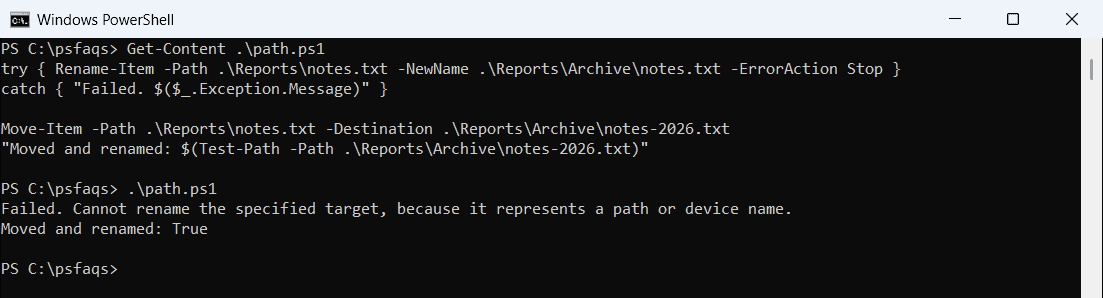
Move-Item -Destination accepts a full path with the new file name at the end. See moving a file to a folder in PowerShell.
When the new name already exists
Rename-Item won’t overwrite another file. If the name is taken, you get this error:
try { Rename-Item -Path .\Reports\notes.txt -NewName report.txt -ErrorAction Stop }
catch { "Failed. $($_.Exception.Message)" }
Output:
Failed. Cannot create a file when that file already exists.There’s no -Force switch that changes this. Delete or rename the other file first, or pick a unique name, for example by adding the date to the file name.
Rename many files at once
Pipe files from Get-ChildItem and pass a script block to -NewName. PowerShell runs the block for each file, with $_ as the current file:
Get-ChildItem -Path .\Reports -Filter 'draft-*.txt' |
    Rename-Item -NewName { $_.Name -replace '^draft-', 'final-' } -PassThru |
    Select-Object -ExpandProperty Name
Output:
final-austin.txt
final-denver.txt
final-seattle.txt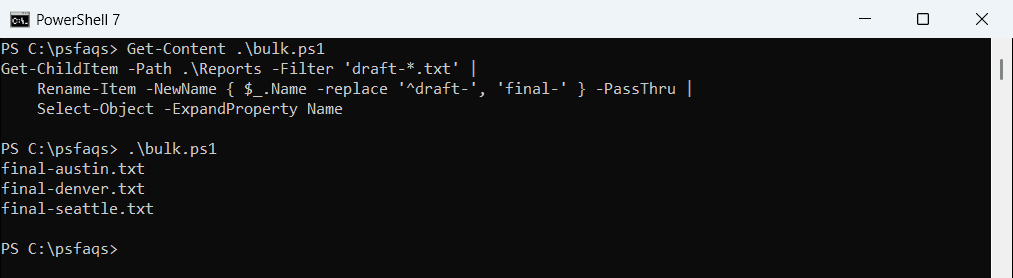
-PassThru outputs the renamed files, so you can see the new names. Test the pattern with -WhatIf first. This way of passing a script block to a parameter is called a delay-bind script block.
Common bulk rename patterns
| Goal | -NewName script block |
|---|---|
| Add a prefix | { '2026-' + $_.Name } |
| Replace text | { $_.Name -replace 'draft', 'final' } |
| Change the extension | { $_.BaseName + '.csv' } |
| Lowercase the name | { $_.Name.ToLower() } |
| Spaces to dashes | { $_.Name -replace ' ', '-' } |
Changing the extension only renames the file. It doesn’t convert the contents. For copies under new names, see copying and renaming files.
File names with square brackets
Square brackets are wildcard characters in PowerShell paths. Windows PowerShell 5.1 treats them that way in -Path, so it can’t find the file:
try {
    Rename-Item -Path '.\Reports\q3[final].xlsx' -NewName 'q3-final.xlsx' -ErrorAction Stop
    '-Path worked'
}
catch { "Failed. $($_.Exception.Message)" }
Output:
-Path worked