
To find the process locking a file using PowerShell, ask the Windows Restart Manager. It’s the same API installers use to see which apps hold a file, and it works without admin rights:
. .\FileLock.ps1
Get-FileLockProcess -Path C:\Reports\budget-2026.xlsx
FileLock.ps1 is a short script you’ll copy from this page. Below I also test whether a file is locked, scan a whole folder, and stop the process holding the file. I ran it all in PowerShell 7 and Windows PowerShell 5.1.
The file is being used by another process
When a program opens a file without sharing, Windows blocks other programs from changing it. For my tests, a hidden PowerShell window holds budget-2026.xlsx open, just like Excel would. Deleting it fails:
try {
    Remove-Item -Path .\q3-reports\budget-2026.xlsx -ErrorAction Stop
}
catch {
    "Failed. $($_.Exception.Message)"
}
Output:
Failed. The process cannot access the file 'C:\psfaqs\q3-reports\budget-2026.xlsx' because it is being used by another process.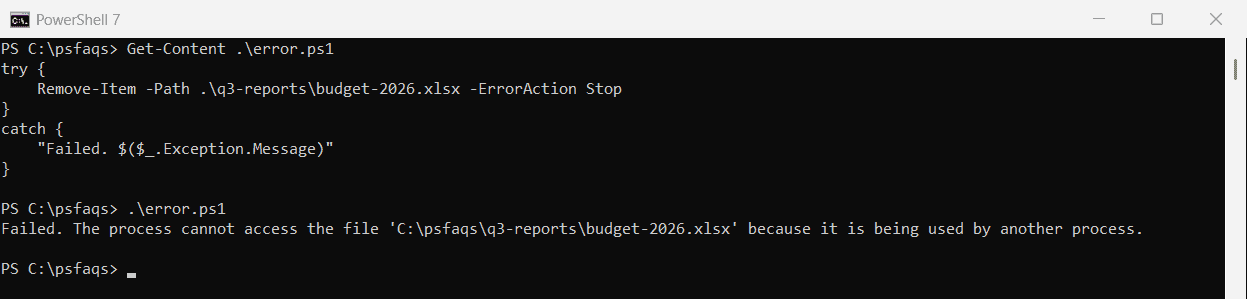
Rename, copy-over and Remove-Item all fail the same way. The message never says which process it is, so we have to find out.
Check if a file is locked with PowerShell
The quickest test is to open the file with no sharing allowed. If another process has it open, .NET throws an IOException:
function Test-FileLock ([string]$Path) {
    $full = (Resolve-Path -LiteralPath $Path).ProviderPath
    try {
        $stream = [System.IO.File]::Open($full, 'Open', 'Read', 'None')
        $stream.Close()
        $false
    }
    catch [System.IO.IOException] {
        $true
    }
}

foreach ($file in Get-ChildItem -Path .\q3-reports -File) {
    '{0,-18} locked: {1}' -f $file.Name, (Test-FileLock $file.FullName)
}
Output:
budget-2026.xlsx   locked: True
invoice-1042.pdf   locked: False
notes.txt          locked: False
Resolve-Path matters here. .NET methods resolve a relative path against the PowerShell process folder, not your current location. More on handling the exception in try and catch in PowerShell.
Find which process is locking a file
Save the script below as FileLock.ps1. It compiles a small C# class that calls the Restart Manager functions in rstrtmgr.dll, then wraps it in a Get-FileLockProcess function:
if (-not ('FileLock' -as [type])) {
    Add-Type -TypeDefinition @'
using System;
using System.Collections.Generic;
using System.Diagnostics;
using System.Runtime.InteropServices;

public static class FileLock
{
    [StructLayout(LayoutKind.Sequential)]
    struct RM_UNIQUE_PROCESS
    {
        public int dwProcessId;
        public System.Runtime.InteropServices.ComTypes.FILETIME ProcessStartTime;
    }

    [StructLayout(LayoutKind.Sequential, CharSet = CharSet.Unicode)]
    struct RM_PROCESS_INFO
    {
        public RM_UNIQUE_PROCESS Process;
        [MarshalAs(UnmanagedType.ByValTStr, SizeConst = 256)] public string strAppName;
        [MarshalAs(UnmanagedType.ByValTStr, SizeConst = 64)] public string strServiceShortName;
        public int ApplicationType;
        public uint AppStatus;
        public uint TSSessionId;
        [MarshalAs(UnmanagedType.Bool)] public bool bRestartable;
    }

    [DllImport("rstrtmgr.dll", CharSet = CharSet.Unicode)]
    static extern int RmStartSession(out uint handle, int flags, string key);
    [DllImport("rstrtmgr.dll")]
    static extern int RmEndSession(uint handle);
    [DllImport("rstrtmgr.dll", CharSet = CharSet.Unicode)]
    static extern int RmRegisterResources(uint handle, uint nFiles, string[] files,
        uint nApps, RM_UNIQUE_PROCESS[] apps, uint nServices, string[] services);
    [DllImport("rstrtmgr.dll")]
    static extern int RmGetList(uint handle, out uint needed, ref uint count,
        [In, Out] RM_PROCESS_INFO[] info, ref uint rebootReasons);

    public static List<Process> GetLockingProcesses(string path)
    {
        uint handle;
        var result = new List<Process>();
        int rc = RmStartSession(out handle, 0, Guid.NewGuid().ToString());
        if (rc != 0) throw new Exception("RmStartSession failed: " + rc);
        try
        {
            rc = RmRegisterResources(handle, 1, new string[] { path }, 0, null, 0, null);
            if (rc != 0) throw new Exception("RmRegisterResources failed: " + rc);
            uint needed = 0, count = 0, reasons = 0;
            rc = RmGetList(handle, out needed, ref count, null, ref reasons);
            if (rc == 234)
            {
                var info = new RM_PROCESS_INFO[needed];
                count = needed;
                rc = RmGetList(handle, out needed, ref count, info, ref reasons);
                if (rc != 0) throw new Exception("RmGetList failed: " + rc);
                for (int i = 0; i < count; i++)
                {
                    try { result.Add(Process.GetProcessById(info[i].Process.dwProcessId)); }
                    catch (ArgumentException) { }   // the process already exited
                }
            }
            else if (rc != 0) throw new Exception("RmGetList failed: " + rc);
        }
        finally { RmEndSession(handle); }
        return result;
    }
}
'@
}

function Get-FileLockProcess {
    param([Parameter(Mandatory)][string]$Path)
    $full = (Resolve-Path -LiteralPath $Path).ProviderPath
    [FileLock]::GetLockingProcesses($full) | Select-Object Id, ProcessName, Path
}
The C# is plain enough for the older compiler in Windows PowerShell 5.1, so the same file works in both versions. Now dot-source it and pass the locked file:
. .\FileLock.ps1

Get-FileLockProcess -Path .\q3-reports\budget-2026.xlsx | Format-List
Output:
Id          : 57680
ProcessName : powershell
Path        : C:\WINDOWS\System32\WindowsPowerShell\v1.0\powershell.exe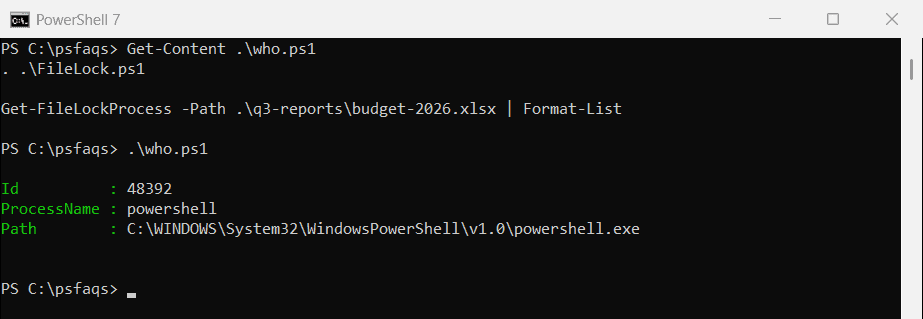
It found my hidden powershell.exe and its process ID. With Excel, you’d see EXCEL here instead. Get-Process gives you more details about that PID.
Find locked files in a folder
Restart Manager won’t accept a folder path, so check each file in it. This lists every file in the folder and who holds it:
. .\FileLock.ps1

Get-ChildItem -Path .\q3-reports -File | ForEach-Object {
    $p = Get-FileLockProcess -Path $_.FullName
    [pscustomobject]@{
        File     = $_.Name
        LockedBy = $(if ($p) { '{0} (PID {1})' -f $p.ProcessName, $p.Id } else { '-' })
    }
} | Format-Table -AutoSize
Output:
File             LockedBy
----             --------
budget-2026.xlsx powershell (PID 47280)
invoice-1042.pdf -
notes.txt        -