
To delete user profiles using PowerShell in Windows 11, find the profile with Get-CimInstance Win32_UserProfile and pipe it to Remove-CimInstance in an elevated window. That removes the folder and the registry entry together:
Get-CimInstance -ClassName Win32_UserProfile |
    Where-Object { $_.LocalPath -eq 'C:\Users\jsmith' } |
    Remove-CimInstance
Deleting a profile can’t be undone, so below I list profiles safely, find stale ones and preview the removal with -WhatIf. I didn’t delete anything on my test PC, and my account name and SID are masked.
List the user profiles on a PC
Win32_UserProfile returns every profile, including the built-in service profiles. Any user can read it:
Get-CimInstance -ClassName Win32_UserProfile |
    Sort-Object -Property Special |
    ForEach-Object {
        '{0,-45} Special: {1,-5} Loaded: {2,-5} Last used: {3:yyyy-MM-dd}' -f $_.LocalPath, $_.Special, $_.Loaded, $_.LastUseTime
    }
Output:
C:\Users\alice                                Special: False Loaded: True  Last used: 2026-09-29
C:\WINDOWS\ServiceProfiles\NetworkService     Special: True  Loaded: True  Last used: 2026-09-29
C:\WINDOWS\ServiceProfiles\LocalService       Special: True  Loaded: True  Last used: 2026-09-29
C:\WINDOWS\system32\config\systemprofile      Special: True  Loaded: True  Last used: 2026-09-29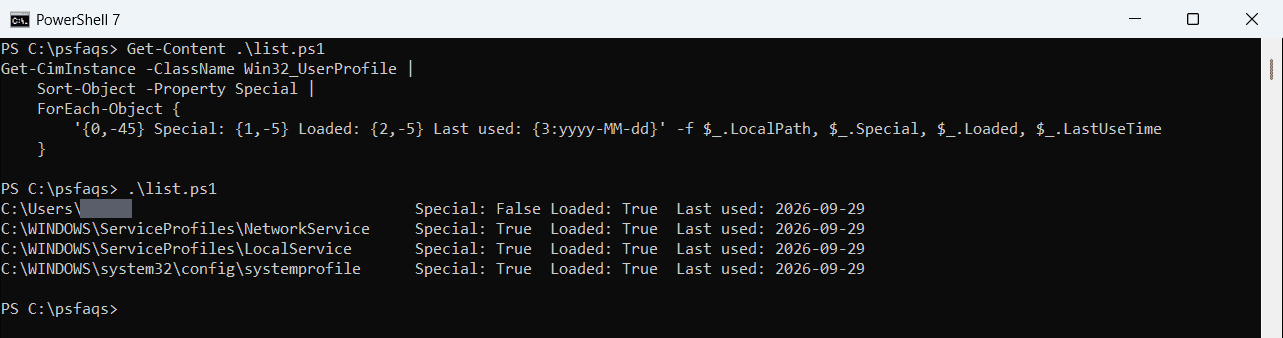
Special profiles belong to Windows itself. Never delete those. Loaded means the profile is in use right now, and Windows won’t let you remove it.
Find profiles that haven’t been used in 90 days
LastUseTime tells you when a profile was last used. This finds regular profiles that aren’t loaded and haven’t been used for 90 days:
$cutoff = (Get-Date).AddDays(-90)
$candidates = Get-CimInstance -ClassName Win32_UserProfile |
    Where-Object { -not $_.Special -and -not $_.Loaded -and $_.LastUseTime -lt $cutoff }

"Regular profiles:          $(@(Get-CimInstance -ClassName Win32_UserProfile | Where-Object { -not $_.Special }).Count)"
"Unused for 90+ days:       $(@($candidates).Count)"
"Loaded right now (skipped): $(@(Get-CimInstance -ClassName Win32_UserProfile | Where-Object Loaded).Count)"
Output:
Regular profiles:          1
Unused for 90+ days:       0
Loaded right now (skipped): 4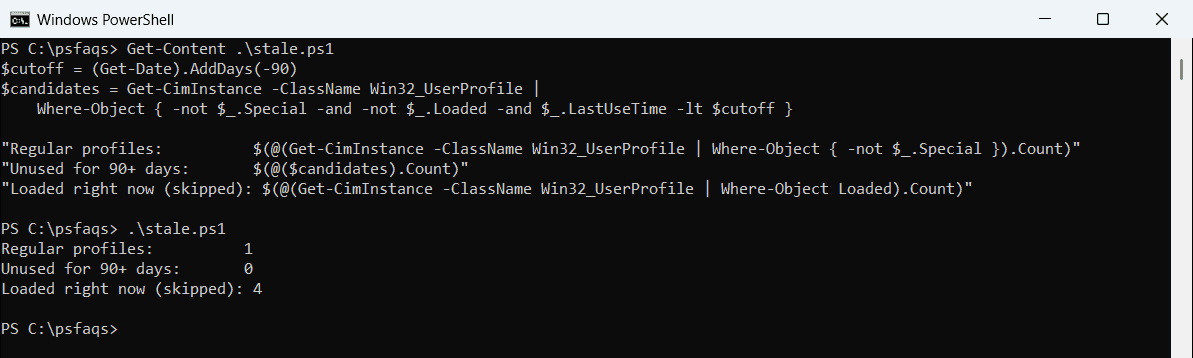
Change -90 to match your policy. On shared PCs, deleting profiles older than 30 days covers a scheduled cleanup.
Preview the deletion with -WhatIf
Remove-CimInstance supports -WhatIf, so you can see exactly which profile it would remove:
Get-CimInstance -ClassName Win32_UserProfile |
    Where-Object { (Split-Path -Path $_.LocalPath -Leaf) -eq $env:USERNAME } |
    Remove-CimInstance -WhatIf
Output:
What if: Performing the operation "Remove-CimInstance" on target "Win32_UserProfile (SID = "S-1-5-21-3623811015-3361044348-303008204...)".
Remove -WhatIf and run it as administrator to delete for real. Microsoft documents the cmdlet in the Remove-CimInstance reference.
Delete several stale profiles at once
Combine the filter and the removal, with -WhatIf first. Excluding Special and Loaded profiles keeps the command safe:
$cutoff = (Get-Date).AddDays(-90)
Get-CimInstance -ClassName Win32_UserProfile |
    Where-Object { -not $_.Special -and -not $_.Loaded -and $_.LastUseTime -lt $cutoff } |
    Remove-CimInstance -WhatIf
Check the list, then run it again without -WhatIf. Listing local users helps you match profiles to accounts.
Delete a profile on a remote computer
Get-CimInstance accepts -ComputerName, and the objects it returns can be removed the same way. You need admin rights and WinRM on the remote PC:
Get-CimInstance -ClassName Win32_UserProfile -ComputerName PC-SALES-07 |
    Where-Object { $_.LocalPath -eq 'C:\Users\jsmith' } |
    Remove-CimInstance
See the Get-CimInstance reference for the connection options.
Don’t delete the folder in C:\Users by hand
Deleting only the folder leaves the profile’s entry in the registry. The next time that user signs in, Windows loads a temporary profile instead.
Removing the Win32_UserProfile object cleans up both. In Settings, Accounts > Other users > Remove does the same, but it also deletes the account.
Frequently Asked Questions
How do I delete a user profile with PowerShell?
Run Get-CimInstance Win32_UserProfile | Where-Object LocalPath -eq 'C:\Users\name' | Remove-CimInstance as administrator.
Can I delete a user profile by deleting its folder?
No. That leaves the registry entry behind, and the user gets a temporary profile. Use Remove-CimInstance instead.
Why can’t I delete a user profile?
The profile is loaded because the user is signed in, or you’re not running as administrator.
How do I find old user profiles?
Filter Win32_UserProfile on LastUseTime, and skip profiles where Special or Loaded is True.
Does deleting a profile delete the user account?
No. Remove-CimInstance removes the profile folder and registry data. The account itself stays.
Related account tasks:

Bijay Kumar is an esteemed author and the mind behind PowerShellFAQs.com, where he shares his extensive knowledge and expertise in PowerShell, with a particular focus on SharePoint projects. Recognized for his contributions to the tech community, Bijay has been honored with the prestigious Microsoft MVP award. With over 15 years of experience in the software industry, he has a rich professional background, having worked with industry giants such as HP and TCS. His insights and guidance have made him a respected figure in the world of software development and administration. Read more.