
To get computer information using PowerShell, run Get-ComputerInfo. It returns more than 180 properties about Windows, the hardware and the BIOS. Pick the ones you need with -Property:
$info = Get-ComputerInfo -Property WindowsProductName, OsBuildNumber, OsArchitecture,
    CsNumberOfLogicalProcessors, CsTotalPhysicalMemory

"WindowsProductName: $($info.WindowsProductName)"
"OsBuildNumber:      $($info.OsBuildNumber)"
"OsArchitecture:     $($info.OsArchitecture)"
"Logical CPUs:       $($info.CsNumberOfLogicalProcessors)"
"Memory:             $([math]::Round($info.CsTotalPhysicalMemory / 1GB)) GB"
Output:
WindowsProductName: Windows 10 Enterprise
OsBuildNumber:      26200
OsArchitecture:     64-bit
Logical CPUs:       16
Memory:             16 GB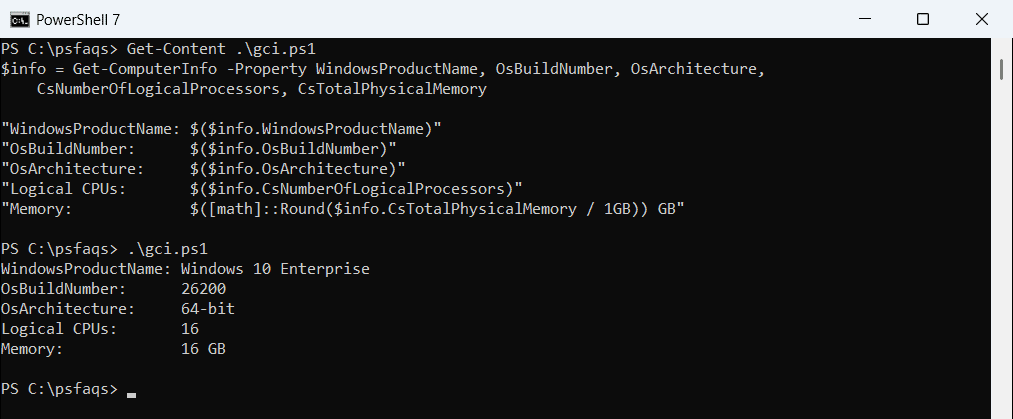
Notice WindowsProductName says Windows 10 on this Windows 11 PC. It’s a long-standing quirk, and below I show a more reliable way, plus a faster CIM report and remote queries. I tested everything in PowerShell 7.6 and 5.1.
Get reliable details with Get-CimInstance
The CIM classes return the real Windows name and give you full control over what you query. This builds a short system report:
$os   = Get-CimInstance -ClassName Win32_OperatingSystem
$cpu  = Get-CimInstance -ClassName Win32_Processor
$disk = Get-CimInstance -ClassName Win32_LogicalDisk -Filter "DeviceID = 'C:'"

"OS:          $($os.Caption) (build $($os.BuildNumber))"
"Last boot:   $($os.LastBootUpTime.ToString('yyyy-MM-dd'))"
"CPU:         $($cpu.NumberOfCores) cores, $($cpu.NumberOfLogicalProcessors) logical processors"
"Memory:      $([math]::Round($os.TotalVisibleMemorySize / 1MB)) GB"
"Drive C:     $([math]::Round($disk.Size / 1GB)) GB, $([math]::Round($disk.FreeSpace / 1GB)) GB free"
Output:
OS:          Microsoft Windows 11 Enterprise (build 26200)
Last boot:   2026-09-23
CPU:         12 cores, 16 logical processors
Memory:      16 GB
Drive C:     953 GB, 351 GB free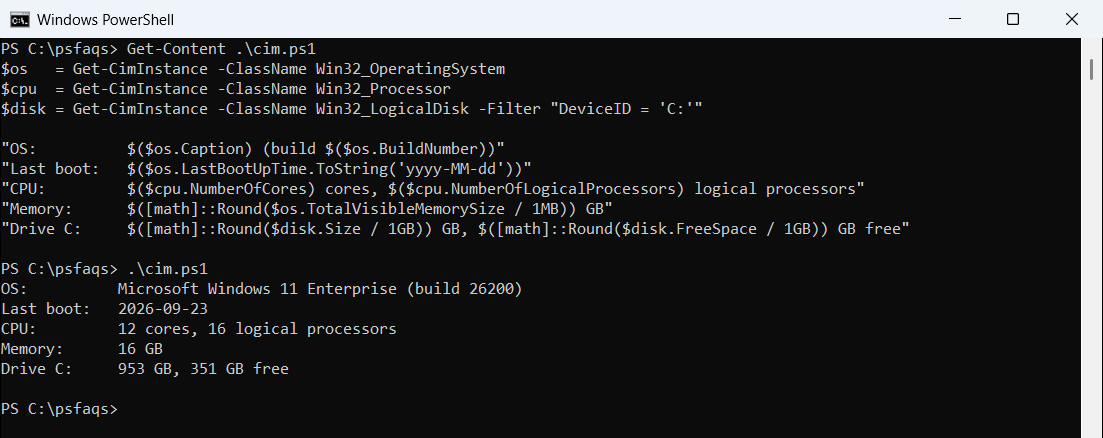
Build 26200 and a Caption of Windows 11 are the dependable way to tell Windows 11 apart. Getting the Windows version covers more version checks.
For storage details such as Fibre Channel adapter identifiers, see how to find the WWN number in Windows using PowerShell.
Get-ComputerInfo is slow
Get-ComputerInfo collects everything, even when you ask for a few properties. A single CIM query is far faster:
$slow = Measure-Command { Get-ComputerInfo | Out-Null }
$fast = Measure-Command { Get-CimInstance -ClassName Win32_OperatingSystem | Out-Null }

"Get-ComputerInfo:             {0:N1} seconds" -f $slow.TotalSeconds
"Get-CimInstance (one class):  {0:N1} seconds" -f $fast.TotalSeconds
Output:
Get-ComputerInfo:             4.7 seconds
Get-CimInstance (one class):  0.5 seconds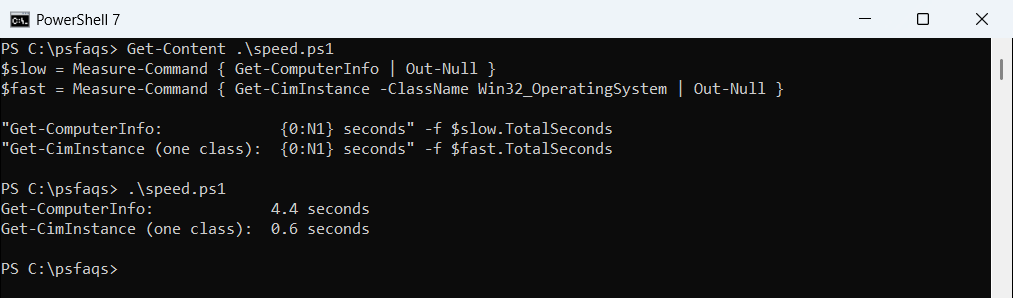
That difference adds up across hundreds of PCs. Use Get-ComputerInfo when you’re exploring, and CIM in scripts.
Useful Get-ComputerInfo properties
| Property | What it tells you |
|---|---|
| OsName, OsBuildNumber | The Windows name and build |
| OsLastBootUpTime, OsUptime | When Windows started and how long it has run |
| CsNumberOfLogicalProcessors | Logical CPU count |
| CsTotalPhysicalMemory | Installed memory in bytes |
| BiosSMBIOSBIOSVersion | BIOS version |
| CsDomain, CsPartOfDomain | Domain membership |
Run Get-ComputerInfo | Get-Member to see every property. The full output also includes the PC name, user name and serial number, so review it before sharing.
For firmware details, see gett