
If you need to count how many orders came from each state, the PowerShell Group-Object cmdlet does it in one line: Import-Csv .\orders.csv | Group-Object -Property State -NoElement. You get one row per state with a Count column.
In this tutorial, I’ll show you how PowerShell Group-Object works on one small orders file, from a simple group-by-and-count to hashtables, and the real differences I hit between PowerShell 7 and Windows PowerShell 5.1.
The sample orders.csv we’ll use
Every example below reads the same orders.csv: 10 orders from Texas, Washington and Colorado stores, January to April 2026. Here it is, loaded with Import-Csv in PowerShell:
Import-Csv -Path .\orders.csv | Format-Table -AutoSizeOutput:
OrderId Customer     State City    Amount OrderDate
------- --------     ----- ----    ------ ---------
1001    Maria Lopez  TX    Austin  89.99  2026-01-05
1002    Tom Baker    WA    Seattle 120.50 2026-01-09
1003    Dana Reyes   CO    Denver  45.00  2026-02-02
1004    James Carter TX    Dallas  210.00 2026-02-14
1005    Emily Chen   WA    Spokane 60.00  2026-02-20
1006    Kevin Nguyen CO    Denver  132.75 2026-03-03
1007    Laura Smith  tx    Austin  15.25  2026-03-11
1008    Ryan Brooks  WA    Seattle 74.40  2026-03-18
1009    Sarah Kim    TX    Houston 99.00  2026-04-06
1010    Mark Davis   TX    Austin  18.60  2026-04-21
Watch order 1007. Someone typed its state as lowercase tx, and that one row changes the results in three sections below.
Method 1: Group objects by one property (Recommended)
Start here when you want to see which values repeat. Pass the column name to -Property:
Import-Csv -Path .\orders.csv | Group-Object -Property StateOutput:
Count Name                      Group
----- ----                      -----
    2 CO                        {@{OrderId=1003; Customer=Dana Reyes; State=CO; City=Denver; Amount=45.00; OrderDate=2…
    5 TX                        {@{OrderId=1001; Customer=Maria Lopez; State=TX; City=Austin; Amount=89.99; OrderDate=…
    3 WA                        {@{OrderId=1002; Customer=Tom Baker; State=WA; City=Seattle; Amount=120.50; OrderDate=…
That returns three groups: 2 orders for CO, 5 for TX and 3 for WA.
How does this code work?
Group-Object reads each order, looks at its State value and drops the order into a bucket with that name.
Each bucket comes back as a GroupInfo object with four properties: Count, Name, Group and Values. You can confirm it when you check the object type with GetType().
Group holds the original order objects, so nothing is lost.
Important: grouping ignores case by default. The lowercase tx order joined the TX group, which is why TX shows 5 orders, not 4.
Method 2: Group by and count with Group-Object -NoElement
Most of the time you only want the counts. Add -NoElement to drop the Group column, then sort the biggest groups to the top with PowerShell Sort-Object:
Import-Csv -Path .\orders.csv |
    Group-Object -Property State -NoElement |
    Sort-Object -Property Count -Descending
Output:
Count Name
----- ----
    5 TX
    3 WA
    2 CO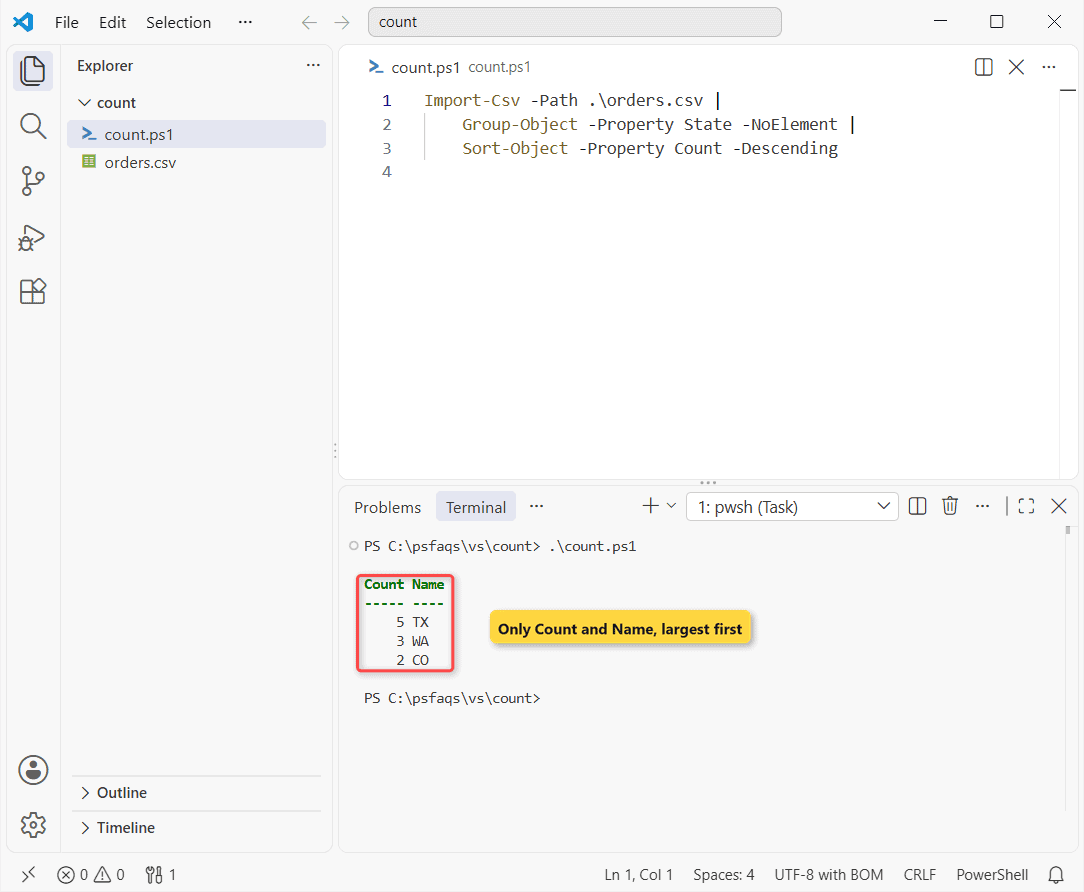
Same orders.csv, now just three short rows: TX 5, WA 3, CO 2.
How does this code work?
-NoElement keeps Count and Name and throws away the member objects.
The same pattern finds duplicates. Group by City and keep groups with more than one order using the Where-Object cmdlet:
Import-Csv -Path .\orders.csv |
    Group-Object -Property City -NoElement |
    Where-Object -Property Count -GT 1