
Run Start-Service with the service name from a PowerShell window opened as administrator, and Windows starts it. That’s how you start a service with PowerShell:
Start-Service -Name SpoolerDana Reyes looks after 20 PCs at an architecture firm in Austin. A few mornings a month, a service that should be running isn’t, and the first sign is a plotter job that never prints.
In this tutorial, I’ll build her morning service check with you, piece by piece. Along the way you’ll preview a start, wait for a service to come up, fix a disabled one, start several at once and reach other PCs.
I ran the examples in PowerShell 7.6 and Windows PowerShell 5.1 on Windows 11, in a session that wasn’t elevated. No real service changed state; you’ll see real read-only output, -WhatIf previews and the true errors Windows returns.
The finished morning service check
Here’s the goal. Start-ServiceChecked takes a list of service names, leaves running services alone, flags disabled and misspelled ones, and starts the rest. With -WhatIf it only reports:
. .\Start-ServiceChecked.ps1
$morning = 'Spooler', 'XblGameSave', 'RemoteRegistry', 'NoSuchSvc'
$morning | Start-ServiceChecked -WhatIf
Output:
Running  Spooler (nothing to do)
What if: Performing the operation "Start and wait" on target "Xbox Live Game Save (XblGameSave)".
Blocked  RemoteRegistry (startup type is Disabled)
Missing  NoSuchSvc (check the spelling)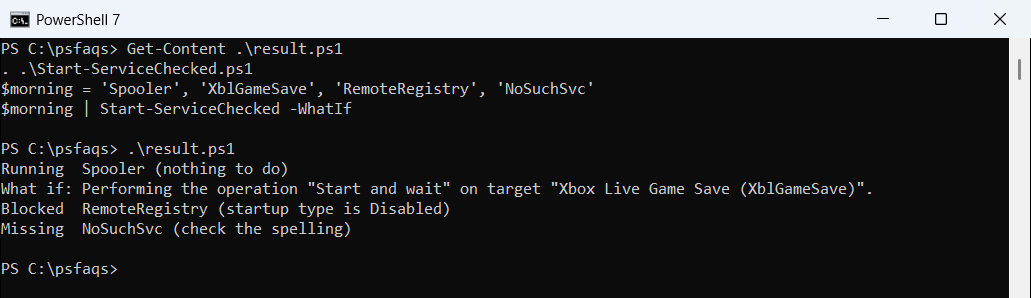
Windows PowerShell 5.1 printed the same four lines. Each one maps to a step below, so you can build and test the parts one at a time.
If you only need a quick look first, the guide to list running services in PowerShell has the basic queries.
Step 1: Check the service status and startup type
Start-Service wants the short service name, such as XblGameSave, not the friendly display name. Get-Service shows both, along with the two properties that decide whether a start can work:
Get-Service -Name Spooler, XblGameSave, RemoteRegistry |
    Select-Object Name, DisplayName, Status, StartType
Output:
Name           DisplayName          Status StartType
----           -----------          ------ ---------
RemoteRegistry Remote Registry     Stopped  Disabled
Spooler        Print Spooler       Running Automatic
XblGameSave    Xbox Live Game Save Stopped    Manual
Status tells you whether it’s running now. StartType tells you whether it’s allowed to start at all: Automatic and Manual services can, while a Disabled service can’t until you change it. The table looked the same in 5.1.
Don’t know the exact name? Search the display name with a wildcard, such as Get-Service -DisplayName '*Xbox*', or pipe every service to a Where-Object filter on Status.
Step 2: Preview the start with -WhatIf
Both Start-Service and Set-Service support -WhatIf. It names the service the command would touch and changes nothing, so it works without admin rights:
Start-Service -Name XblGameSave -WhatIf
Start-Service -DisplayName 'Xbox Live G