
A print queue is stuck, an update wants a service out of the way, or a misbehaving agent is eating CPU. You need that service stopped now, and you’d rather not click through the Services console.
Quick answer: to stop a service with PowerShell, run Stop-Service with the service name in a window opened as administrator. Add -Force when other services depend on it:
Stop-Service -Name Spooler
Stop-Service -Name Spooler -Force
In this tutorial, we’ll stop a service with PowerShell step by step: find the right name, preview the stop, handle dependent services and access-denied errors, stop several services and reach remote PCs.
What You Need Before You Start
You need an elevated PowerShell window, because Microsoft Learn says Stop-Service can control services only when your account has permission. Your account must be in the local Administrators group, and you start the window with Run as administrator.
We ran every example in PowerShell 7.6 and Windows PowerShell 5.1 on Windows 11, in a window that wasn’t elevated. That kept our test PC safe and captured the real errors. The true stops are shown as code.
Step 1: Find the Service Name With Get-Service
Stop-Service wants the short service name, such as Spooler, while the Services console shows the display name, Print Spooler. Search by display name to get both:
Get-Service -DisplayName '*Spooler*' |
    Select-Object Name, DisplayName, Status, CanStop
Output:
Name    DisplayName    Status CanStop
----    -----------    ------ -------
Spooler Print Spooler Running    True
The Name column is what you pass to -Name. CanStop is worth a glance too: it’s False for services that refuse a stop request. Our guide to list running services in PowerShell covers more filters.
Step 2: Preview the Stop With -WhatIf
Before you stop anything, run the command with -WhatIf. It tells you which service would stop and changes nothing. These three forms target the same service:
Stop-Service -Name Spooler -WhatIf
Stop-Service -DisplayName 'Print Spooler' -WhatIf
Get-Service -Name Spooler | Stop-Service -WhatIf
Output:
What if: Performing the operation "Stop-Service" on target "Print Spooler (Spooler)".
What if: Performing the operation "Stop-Service" on target "Print Spooler (Spooler)".
What if: Performing the operation "Stop-Service" on target "Print Spooler (Spooler)".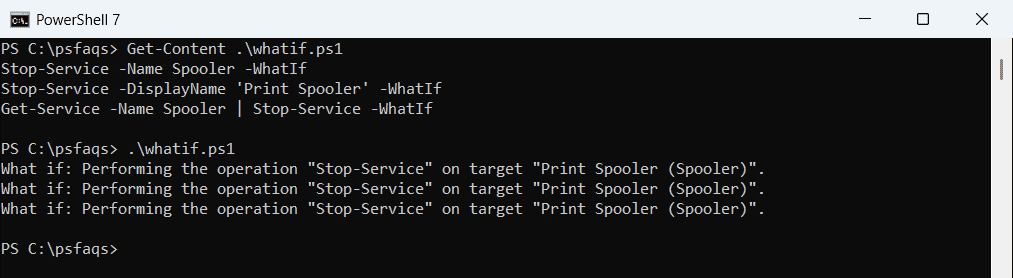
-WhatIf worked without admin rights in both shells. Use -Confirm instead for a yes/no prompt per service.
Step 3: Stop the Service as Administrator
In an elevated window, drop -WhatIf. Add -PassThru, because Stop-Service prints nothing by default, and the returned object shows the new status:
Stop-Service -Name Spooler -PassThruNow here’s what happens in a window that isn’t elevated. We tried a running service and one that was already stopped:
foreach ($name in 'Spooler', 'XblGameSave') {
    $svc = Get-Service -Name $name
    try {
        Stop-Servic