
Short on keystrokes? A PowerShell alias is a nickname for a command. Set-Alias creates one, and Get-Alias shows what it points to:
Set-Alias -Name np -Value notepad.exe
Get-Alias -Name np
In this tutorial, I’ll show you how to list, create, protect, remove and keep a PowerShell alias, and where PowerShell 7 and Windows PowerShell 5.1 disagree.
What is a PowerShell alias?
An alias is an alternate name for a cmdlet, function, script or executable file. PowerShell ships with built-in ones, such as gci, dir and ls for the Get-ChildItem cmdlet.
An alias passes every parameter through to its command, so gci -Recurse works like the full name. Aliases live only in the current session unless you save them.
List aliases with Get-Alias
Get-Alias -Name finds what an alias runs, and -Definition works backward from a command to its aliases:
(Get-Alias -Name gci).DisplayName
(Get-Alias -Name sls).Definition
(Get-Alias -Definition Get-ChildItem).Name -join ', '
(Get-Alias -Name g*).Count -gt 10
Output:
gci -> Get-ChildItem
Select-String
dir, gci, ls
True
DisplayName shows the arrow format, Definition holds the target, and the last line confirms that wildcards such as g* work. You can also browse the Alias: drive with Get-ChildItem.
To read a long list, pipe Get-Alias to Where-Object to filter on Definition or Options.
Create an alias with New-Alias or Set-Alias
New-Alias only creates. Set-Alias creates or changes, so it’s the safer choice in a profile:
New-Alias -Name list -Value Get-ChildItem
try {
    New-Alias -Name list -Value Get-Location -ErrorAction Stop
}
catch {
    "Failed. $($_.Exception.Message)"
}
Set-Alias -Name list -Value Get-Location
(Get-Alias -Name list).DisplayName
Output:
Failed. The alias is not allowed, because an alias with the name 'list' already exists.
list -> Get-Location
The second New-Alias failed because list already existed. Set-Alias then pointed it to Get-Location with no complaint. An alias can point to only one command.
Why can’t a PowerShell alias take parameters?
An alias stores a command name, never a command plus arguments. Set-Alias accepts the string, but running it fails. The fix is a function, with an alias on top:
Set-Alias -Name winlist -Value 'Get-ChildItem -Path C:\Windows'
try {
    winlist -ErrorAction Stop
}
catch {
    'Failed. ' + ($_.Exception.Message -split ' is not recognized')[0] + ' is not recognized.'
}
function Get-Report { param([string]$City = 'Austin', [int]$Days = 7)
    "Sales report for $City, last $Days days"
}
Set-Alias -Name rpt -Value Get-Report
rpt
rpt -City Denver -Days 30
Output:
Failed. The term 'Get-ChildItem -Path C:\Windows' is not recognized.
Sales report for Austin, last 7 days
Sales report for Denver, last 30 days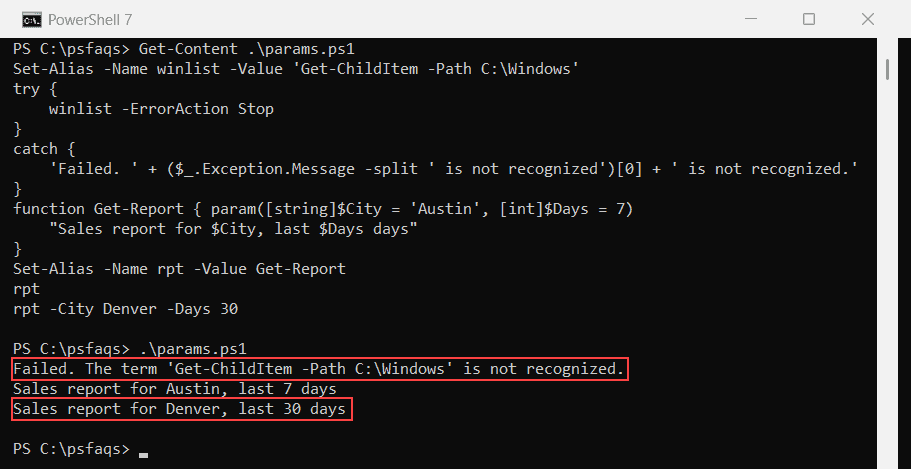
The rpt alias accepted -City and -Days because the function defines them. See how PowerShell functions work for param() blocks and defaults.
Protect aliases with -Option and -Scope
-Option ReadOnly blocks changes unless you add -Force. Constant blocks them for the whole session, even with -Force:
Set-Alias -Name np -Value notepad.exe -Option ReadOnly
try {
    Set-Alias -Name np -Value calc.exe -ErrorAction Stop
}
catch {
    "Failed. $($_.Exception.Message)"
}
Set-Alias -Name np -Value calc.exe -Force
(Get-Alias -Name np).DisplayName
Set-Alias -Name today -Value Get-Date -Option Constant
try {
    Remove-Item -Path Alias:\today -Force -ErrorAction Stop
}
catch {
    "Failed. $($_.Exception.Message)"
}
Output:
Failed. Alias is not writeable because alias np is read-only or constant and cannot be writt