
Dana Reyes, who runs the office at Harbor Point Logistics in Seattle, kept asking how full the shared Reports folder was. Here’s how to create a PowerShell script for that: type the commands in a text editor and save them with a .ps1 extension:
# Get-ReportSummary.ps1
# Counts the files in the shared Reports folder
$files = Get-ChildItem -Path C:\psfaqs\Reports -File
"Files in the Reports folder: $($files.Count)"
In this tutorial, I’ll show you how to create a PowerShell script step by step by growing those few lines into Dana’s finished folder report.
Along the way, you’ll add variables, parameters, a function, a CSV file, error handling and built-in help. I ran each version in PowerShell 7 and Windows PowerShell 5.1 and noted where they behave differently.
What the finished PowerShell script does
Here’s where we’re headed. The finished Get-ReportSummary.ps1 scans the Reports folder, totals the sizes, lists large files, groups the files by type and saves a dated CSV file:
.\Get-ReportSummary.ps1Output:
Folder: C:\psfaqs\Reports
Files: 6, 2765.5 KB in total
Large file: Board-Deck-October-2026.pptx (1536 KB)
Large file: Q3-Sales-Forecast.xlsx (812 KB)
.csv files: 2, 97.5 KB
.pdf files: 1, 225 KB
.pptx files: 1, 1536 KB
.xlsx files: 2, 907 KB
Saved: C:\psfaqs\Output\ReportSummary-2026-10-17.csv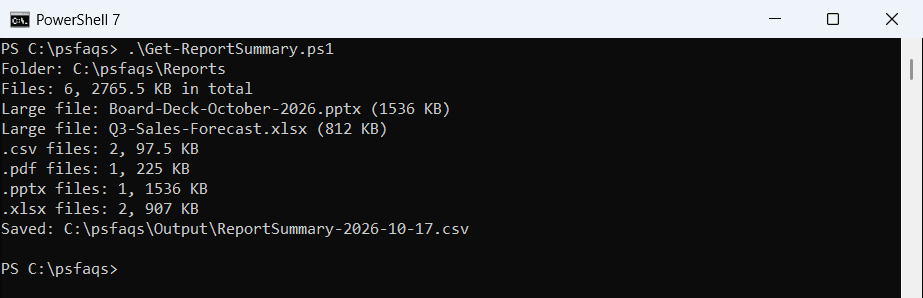
Windows PowerShell 5.1 printed the same lines. The sample folder holds six files I generated for this post.
Once this one works, you’ll find more ideas in these PowerShell script examples for everyday tasks.
Step 1: Pick an editor for your PowerShell script
A PowerShell script is a plain text file, so any text editor works. Three editors come up most often, and each one has a catch:
| Editor | Good for | Watch out for |
|---|---|---|
| Notepad | Quick edits on any Windows PC | Set Save as type to All files, or you get .ps1.txt |
| VS Code + PowerShell extension | Daily scripting in PowerShell 7 and 5.1 | Saves UTF-8 without a BOM by default |
| Windows PowerShell ISE | Older PCs and quick 5.1 tests | Runs only Windows PowerShell 5.1, no new features |
Microsoft recommends Visual Studio Code with the PowerShell extension. Install VS Code, open the Extensions view with Ctrl+Shift+X, search for PowerShell, and install the extension published by Microsoft.
After that, F5 runs the open file, as shown in running scripts in Visual Studio Code. A few useful VS Code extensions for PowerShell make it even nicer.
The ISE still ships with Windows, but Microsoft no longer adds features to it, and it can’t run PowerShell 7. If you already use it, here’s how to run a script in PowerShell ISE.
Step 2: Save the file as .ps1 and run it
Create a folder for your scripts. I use C:\psfaqs, but C:\Scripts works just as well. Paste the short version from the top into your editor and save it as Get-ReportSummary.ps1 in that folder.
In Notepad, change Save as type to All files (*.*) before you click Save. If you skip that, Notepad adds .txt, and PowerShell can’t find the script:
Get-ChildItem -Path C:\psfaqs\Drafts -Name
try { C:\psfaqs\Drafts\Get-ReportSummary.ps1 }
catch { 'Failed. ' + ($_.Exception.Message -split '(?<=\.)\s')[0] }