
If you need to zip a folder in PowerShell, run Compress-Archive with the folder in -Path and the new zip file in -DestinationPath: Compress-Archive -Path .\Q3-2026 -DestinationPath .\Archives\Q3-2026.zip. It’s built in, so there’s nothing to install.
Where people get stuck is what lands inside the zip. One asterisk decides whether the folder itself is in there, and hidden files quietly stay behind.
In this tutorial, I’ll show five ways to handle a PowerShell zip folder job, plus updating a zip, compression levels and the spots where PowerShell 7 and Windows PowerShell 5.1 disagree.
The sample folder we’ll zip
Maria Lopez runs the office at a small Denver bookkeeping firm. Every quarter she zips the Q3-2026 client folder for the firm’s auditor. It holds summary.csv, a 3,000-row ledger.csv, an Invoices folder with three invoice CSVs and a Receipts folder with one receipt.
Three items are tricky on purpose: Drafts is an empty folder, ~notes.txt is hidden, and Budget[v2].csv has square brackets in its name. The Archives folder already exists; if yours doesn’t, create the folder if it doesn’t exist first.
To check each zip, I use a short helper that lists the entries without extracting anything. Save it as Get-ZipEntry.ps1:
function Get-ZipEntry {
    param([string]$Path)
    Add-Type -AssemblyName System.IO.Compression.FileSystem
    $zip = [System.IO.Compression.ZipFile]::OpenRead((Resolve-Path -Path $Path).Path)
    try { $zip.Entries.FullName | Sort-Object }
    finally { $zip.Dispose() }
}
Method 1: Zip a whole folder with Compress-Archive (Recommended)
Use this when the person opening the zip should get one folder with everything in it. Same Q3-2026 folder, zipped as it is:
$zip = '.\Archives\Q3-2026.zip'
Compress-Archive -Path .\Q3-2026 `
    -DestinationPath $zip
. .\Get-ZipEntry.ps1
Get-ZipEntry -Path $zip
Output:
Q3-2026/Budget[v2].csv
Q3-2026/Drafts/
Q3-2026/Invoices/INV-1041.csv
Q3-2026/Invoices/INV-1042.csv
Q3-2026/Invoices/INV-1043.csv
Q3-2026/ledger.csv
Q3-2026/Receipts/R-2207.txt
Q3-2026/summary.csv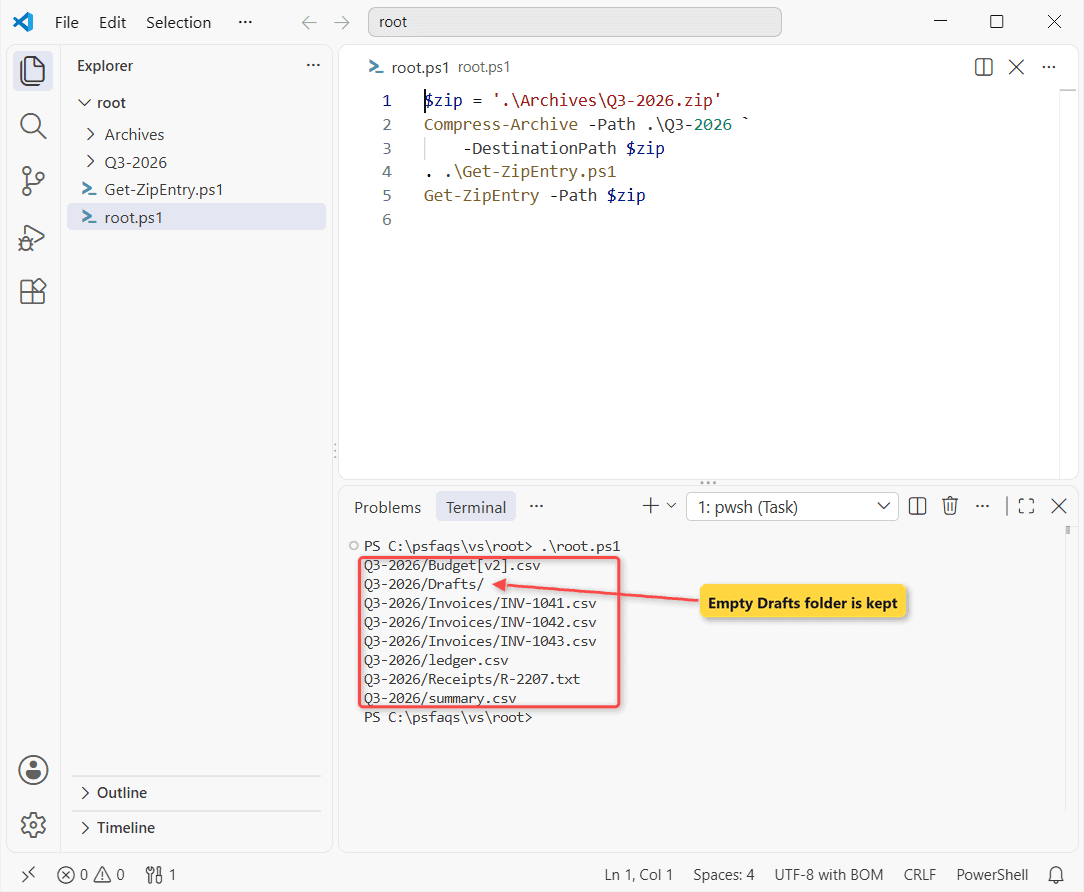
That’s eight entries, all under Q3-2026/. The hidden ~notes.txt isn’t one of them.
How does this work?
A folder path with no wildcard tells Compress-Archive to keep that folder as the top level. It walks every subfolder, so Invoices and Receipts come along, and even the empty Drafts folder gets an entry.
Method 2: Zip only the contents of a folder
Most auditors don’t want to click through an extra folder. Add \* to the same folder and the zip starts with the files themselves. This run is from Windows PowerShell 5.1:
$zip = '.\Archives\Q3-2026.zip'
Compress-Archive -Path .\Q3-2026\* `
    -DestinationPath $zip
. .\Get-ZipEntry.ps1
Get-ZipEntry -Path $zip
Output:
Budget[v2].csv
Invoices/INV-1041.csv
Invoices/INV-1042.csv
Invoices/INV-1043.csv
ledger.csv
Receipts/R-2207.txt
summary.csv