
To write a string to a file in PowerShell, use Set-Content. It creates the file, or replaces whatever is in it. To add more text to the end, use Add-Content:
Set-Content -Path C:\psfaqs\notes.txt -Value 'Server patching starts at 9 PM.'
Add-Content -Path C:\psfaqs\notes.txt -Value 'Expect a 15-minute outage.'
Get-Content -Path C:\psfaqs\notes.txt
Output:
Server patching starts at 9 PM.
Expect a 15-minute outage.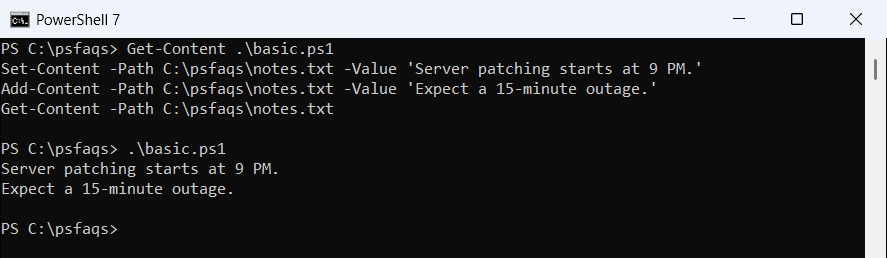
Those two cmdlets cover most jobs. Below I’ll show how to write variables, multiple lines and arrays, how to append, and the encoding differences between PowerShell 7 and Windows PowerShell 5.1 that trip people up.
I tried all of this in PowerShell 7.6 and Windows PowerShell 5.1 on Windows 11. Where the two versions disagree, you’ll see both results.
Which command should you use?
| Command | What it does | Good for |
|---|---|---|
Set-Content | Writes text, replacing the file’s content | Most writes |
Add-Content | Appends text to the end of the file | Logs and running lists |
Out-File | Writes output the way the console shows it | Tables and command output |
> and >> | Shortcuts for Out-File and Out-File -Append | Quick one-liners |
[System.IO.File]::WriteAllText() | Writes a string in one .NET call | Exact control, no trailing newline |
The practical difference is that Set-Content writes plain strings, while Out-File sends objects through the formatter first. More on that below.
Write a variable to a file
Put the variable inside double quotes and PowerShell expands it. Here I build an invoice line and format the total as dollars:
$customer = 'Contoso'
$total    = 1249.5
$line     = "Invoice for $customer, total {0:C}" -f $total

Set-Content -Path C:\psfaqs\order.txt -Value $line
Get-Content -Path C:\psfaqs\order.txt
Output:
Invoice for Contoso, total $1,249.50Single quotes don’t expand variables, so you get the literal text instead:
$customer = 'Contoso'
Set-Content -Path C:\psfaqs\order.txt -Value 'Customer: $customer'
Get-Content -Path C:\psfaqs\order.txt
Output:
Customer: $customerIf you’re not sure which quotes to use, single vs double quotes in PowerShell covers the rules.
How do I write multiple lines to a file in PowerShell?
Pass an array. Set-Content writes each element on its own line:
$servers = 'WEB01', 'WEB02', 'SQL01'
Set-Content -Path C:\psfaqs\servers.txt -Value $servers
Get-Content -Path C:\psfaqs\servers.txt
Output:
WEB01
WEB02
SQL01
To keep everything on one line instead, join the array first:
$servers = 'WEB01', 'WEB02', 'SQL01'
Set-Content -Path C:\psfaqs\servers.txt -Value ($servers -join ', ')
Get-Content -Path C:\psfaqs\servers.txt
Output:
WEB01, WEB02, SQL01Use a here-string for a block of text
For longer text, like a config file, a here-string is easier to read. Everything between @" and "@ is written as is:
$config = @"
Environment=Production
Region=East US
MaxUsers=250
"@

Set-Content -Path C:\psfaqs\config.txt -Value $config
Get-Content -Path C:\psfaqs\config.txt
Output:
Environment=Production
Region=East US
MaxUsers=250
Append text to a file
You have three ways to append: Add-Content, Out-File -Append and the >>