
To get the full path of a file in PowerShell, use Get-Item and read its FullName property. It works with a relative path too:
Set-Location -Path C:\psfaqs\Reports
(Get-Item -Path .\q3-sales.xlsx).FullName
Output:
C:\psfaqs\Reports\q3-sales.xlsxThe file object also has properties for each part of the path, so you rarely need to cut the text yourself:
$file = Get-Item -Path C:\psfaqs\Reports\q3-sales.xlsx

"Folder:    $($file.DirectoryName)"
"Name:      $($file.Name)"
"Base name: $($file.BaseName)"
"Extension: $($file.Extension)"
Output:
Folder:    C:\psfaqs\Reports
Name:      q3-sales.xlsx
Base name: q3-sales
Extension: .xlsx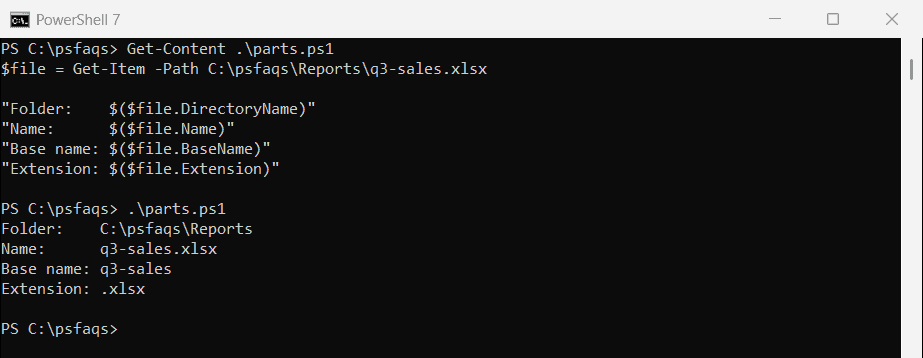
I ran every example in PowerShell 7.6 and Windows PowerShell 5.1. Two handy options exist only in PowerShell 7, and I show the 5.1 way next to them.
Get the paths of all files in a folder
Get-ChildItem returns file objects, so pick FullName to get one path per line:
Get-ChildItem -Path C:\psfaqs\Reports -File | Select-Object -ExpandProperty FullNameOutput:
C:\psfaqs\Reports\budget-2026.xlsx
C:\psfaqs\Reports\q3-sales.xlsx
Add -Recurse to include subfolders. Finding files by name covers the search options.
How do I convert a relative path to an absolute path?
Resolve-Path and Convert-Path both turn a relative path, like ..\Archive, into a full path. The difference is what they return:
Set-Location -Path C:\psfaqs\Reports

$resolved  = Resolve-Path -Path ..\Archive
$converted = Convert-Path -Path .\q3-sales.xlsx

"Resolve-Path: $resolved ($($resolved.GetType().Name))"
"Convert-Path: $converted ($($converted.GetType().Name))"
Output:
Resolve-Path: C:\psfaqs\Archive (PathInfo)
Convert-Path: C:\psfaqs\Reports\q3-sales.xlsx (String)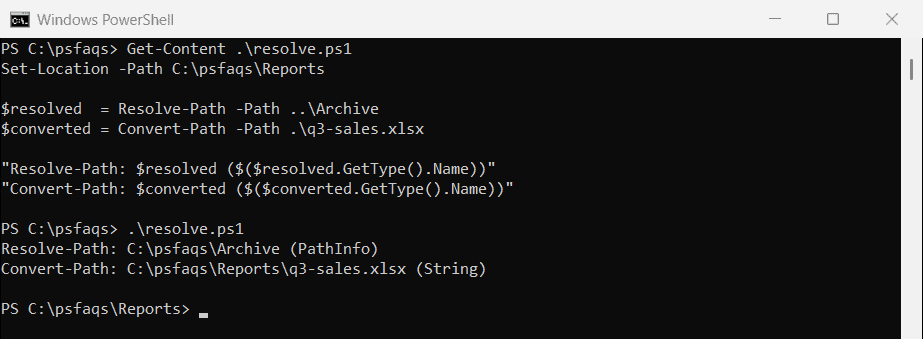
Use Convert-Path when you need a plain string, for example to pass to a .NET method or save in a file.
For a file that doesn’t exist yet
Both cmdlets fail if the path doesn’t exist, which is a problem when you’re about to create a file. PowerShell has a method that builds the full path anyway:
Set-Location -Path C:\psfaqs\Reports

try {
    Resolve-Path -Path .\q4-sales.xlsx -ErrorAction Stop
}
catch {
    "Resolve-Path failed. $($_.Exception.Message)"
}

$ExecutionContext.SessionState.Path.GetUnresolvedProviderPathFromPSPath('.\q4-sales.xlsx')
Output:
Resolve-Path failed. Cannot find path 'C:\psfaqs\Reports\q4-sales.xlsx' because it does not exist.
C:\psfaqs\Reports\q4-sales.xlsx
It’s long, but it’s the reliable way to turn .\q4-sales.xlsx into a full path based on your current location.
Why [System.IO.Path]::GetFullPath gives the wrong folder
You’ll often see [System.IO.Path]::GetFullPath() suggested for this. Watch what happens after Set-Location:
Set-Location -Path C:\psfaqs\Reports

"PowerShell location:     $PWD"
"[IO.Path]::GetFullPath:  $([System.IO.Path]::GetFullPath('.\q3-sales.xlsx'))"
"Convert-Path:            $(Convert-Path -Path .\q3-sales.xlsx)"
Output:
PowerShell location:     C:\psfaqs\Reports
[IO.Path]::GetFullPath:  C:\psfaqs\q3-sales.xlsx
Convert-Path: C:\psfaqs\Reports\q3-sales.xlsx![PowerShell [IO.Path]::GetFullPath resolves against the process folder instead of the current location](https://powershellfaqs.com/wp-content/uploads/2026/09/powershell-getfullpath-vs-convert-path-current-location.png)
.NET resolves the path from the folder the PowerShell process started in, not from your PowerShell location, so it pointed at the wrong folder. Stick with Convert-Path, or pass .NET methods full paths only.
Split a path into parts
Split-Path works on path strings, even ones that don’t exist:
$path = 'C:\psfaqs\Reports\q3-sales.xlsx'

"Parent:    $(Split-Path -Path $path -Parent)"
"Leaf:      $(Split-Path -Path $path -Leaf)"
"Qualifier: $(Split-Path -Path $path -Qualifier)"
Output:
Parent:    C:\psfaqs\Reports
Leaf:      q3-sales.xlsx
Qualifier: C:
PowerShell 7 adds -LeafBase and -Extension:
$path = 'C:\psfaqs\Reports\q3-sales.xlsx'

"LeafBase:  $(Split-Path -Path $path -LeafBase)"
"Extension: $(Split-Path -Path $path -Extension)"
Output in PowerShell 7:
LeafBase:  q3-sales
Extension: .xlsx
Windows PowerShell 5.1 doesn’t have those two switches. Use [System.IO.Path]::GetFileNameWithoutExtension() and GetExtension() there. See how to get a file name without the extension.
Build a path from parts
Join-Path joins folders and file names and fixes extra or missing backslashes for you:
Join-Path -Path C:\psfaqs -ChildPath Reports
Join-Path -Path 'C:\psfaqs\' -ChildPath '\Reports\q3-sales.xlsx'
Output:
C:\psfaqs\Reports
C:\psfaqs\Reports\q3-sales.xlsx
In PowerShell 7, -AdditionalChildPath takes any number of extra parts:
Join-Path -Path C:\psfaqs -ChildPath Reports -AdditionalChildPath 2026, 'q3-sales.xlsx'Output in PowerShell 7:
C:\psfaqs\Reports\2026\q3-sales.xlsxWindows PowerShell 5.1 joins only two parts at a time, so nest the calls, or put the extra folders in the child path:
Join-Path -Path (Join-Path -Path C:\psfaqs -ChildPath Reports) -ChildPath '2026\q3-sales.xlsx'Output:
C:\psfaqs\Reports\2026\q3-sales.xlsxGet the path of the running script
Inside a script, $PSScriptRoot is the script’s folder and $PSCommandPath is its full path, no matter where you run it from:
Set-Location -Path C:\psfaqs
& C:\psfaqs\Tools\where-am-i.ps1