
To clear PowerShell history completely, clear the session list and delete the PSReadLine history file, which is what the Up arrow reads from:
Clear-History
Remove-Item -Path (Get-PSReadLineOption).HistorySavePath
Then close and reopen PowerShell. Below I show both kinds of history, how to remove only one sensitive line, and how to stop PowerShell from saving commands.
PowerShell keeps two kinds of history
| Session history | PSReadLine history file | |
|---|---|---|
| What it is | Commands run in the current window | Every line you’ve typed, saved to disk |
| Where it lives | In memory only | ConsoleHost_history.txt in your AppData folder |
| Read it with | Get-History | Get-Content or the Up arrow |
| Clear it with | Clear-History | Remove-Item on the file |
| Survives a restart? | No | Yes |
That’s why Clear-History alone seems not to work: the Up arrow still shows old commands, because they come from the file. Microsoft covers the session side in about_History.
Clearing history doesn’t clear variables, which are covered in printing variables in PowerShell.
View the session history with Get-History
I don’t want to show my real history, so I loaded four sample commands with Add-History. This is sample-history.ps1, and the examples below start by dot-sourcing it:
$time = Get-Date -Date '2026-10-04 09:15:00'
$commands = 'Get-Service -Name Spooler',
            'Get-ChildItem -Path C:\Reports -Filter *.csv',
            'cmdkey /add:fs01 /user:CONTOSO\jsmith /pass:Summer2026!',
            'Get-Process | Sort-Object -Property CPU -Descending'
foreach ($command in $commands) {
    Add-History -InputObject ([pscustomobject]@{
        CommandLine = $command; ExecutionStatus = 'Completed'
        StartExecutionTime = $time; EndExecutionTime = $time.AddSeconds(2)
    })
    $time = $time.AddMinutes(3)
}
Get-History lists the commands with their Id numbers:
. .\sample-history.ps1
Get-History
Output:
  Id     Duration CommandLine
  --     -------- -----------
   1        2.000 Get-Service -Name Spooler
   2        2.000 Get-ChildItem -Path C:\Reports -Filter *.csv
   3        2.000 cmdkey /add:fs01 /user:CONTOSO\jsmith /pass:Summer2026!
   4        2.000 Get-Process | Sort-Object -Property CPU -Descending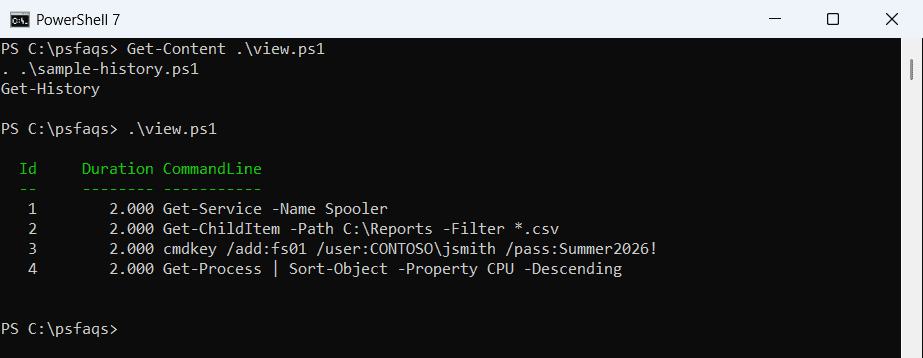
PowerShell 7 adds the Duration column. Windows PowerShell 5.1 shows only Id and CommandLine. Note command 3: it has a password in plain text, which is the most common reason to clear history.
Remove one command with Clear-History
You don’t have to wipe everything. -CommandLine removes matching commands and accepts wildcards:
. .\sample-history.ps1
Clear-History -CommandLine '*/pass:*'
Get-History | Format-Table -Property Id, CommandLine
Output:
Id CommandLine
-- -----------
 1 Get-Service -Name Spooler
 2 Get-ChildItem -Path C:\Reports -Filter *.csv
 4 Get-Process | Sort-Object -Property CPU -Descending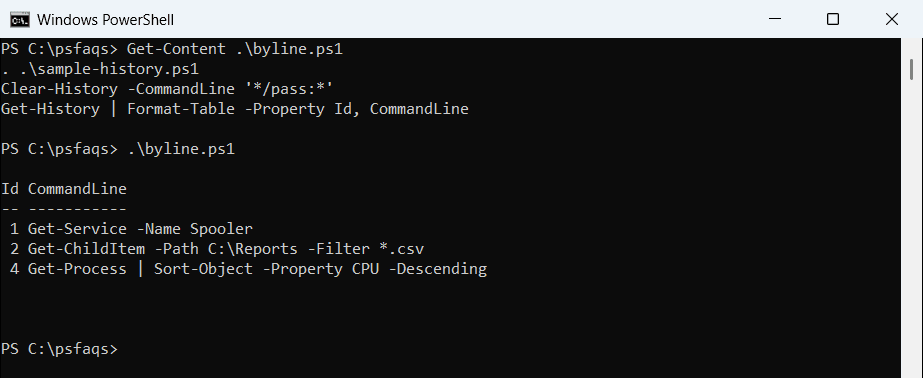
The other commands keep their Id numbers. You can also remove commands by Id, or the newest ones with -Count and -Newest:
. .\sample-history.ps1
Clear-History -Id 1, 4
Clear-History -Count 1 -Newest
Get-History | Format-Table -Property Id, CommandLine
Output:
Id CommandLine
-- -----------
 2 Get-ChildItem -Path C:\Reports -Filter *.csv
Ids 1 and 4 went first, then -Count 1 -Newest removed command 3.
Clear all session history
Run Clear-History with no parameters to empty the list for the current window:
. .\sample-history.ps1
Clear-History
"Commands left in this session: $((Get-History).Count)"
Output:
Commands left in this session: 0This only affects the session list. Commands you typed are still in the PSReadLine file, so the Up arrow keeps finding them in new windows.
Find and delete the PSReadLine history file
Get-PSReadLineOption tells you whe