
To get the type of an object or variable in PowerShell, call its GetType() method. .Name gives the short name and .FullName the full .NET name:
$city = 'Austin'
$city.GetType().Name
$city.GetType().FullName
Output:
String
System.String
To test for a type instead of reading it, use the -is operator, covered below. I ran every example in PowerShell 7.6 and Windows PowerShell 5.1, with the same results.
Common PowerShell types
Here’s what GetType() returns for the values you’ll meet most often:
$values = 'Austin', 42, 3000000000, 19.99, $true, (Get-Date), @(1, 2), @{ State = 'TX' },
          [pscustomobject]@{ Name = 'Alice' }

foreach ($v in $values) {
    '{0,-22} {1}' -f $v.GetType().Name, $v.GetType().FullName
}
Output:
String                 System.String
Int32                  System.Int32
Int64                  System.Int64
Double                 System.Double
Boolean                System.Boolean
DateTime               System.DateTime
Object[]               System.Object[]
Hashtable              System.Collections.Hashtable
PSCustomObject         System.Management.Automation.PSCustomObject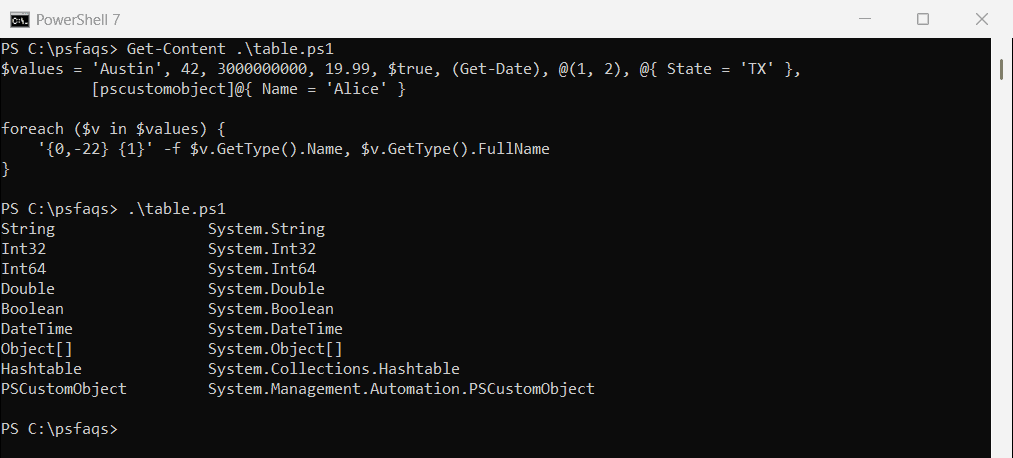
Notice 3000000000: it’s too big for Int32, so PowerShell picks Int64 on its own. A list in parentheses or @() is always Object[], whatever it holds.
Check for $null before calling GetType()
$null has no type, and calling a method on it throws “You cannot call a method on a null-valued expression.” Check first:
$result = $null

if ($null -eq $result) { 'No value, so there is no type to check' }
else { $result.GetType().Name }
Output:
No value, so there is no type to checkPut $null on the left of -eq, as here. Checking for null or empty values explains why.
Get the type with Get-Member
Get-Member shows the type name along with every property and method. Be careful with arrays: piping sends the items one at a time, so you get the types of the items, not the array:
$mixed = 1, 'two', 3

'Piped to Get-Member:'
$mixed | Get-Member | Select-Object -ExpandProperty TypeName -Unique

'With -InputObject:'
(Get-Member -InputObject $mixed).TypeName | Select-Object -Unique
Output:
Piped to Get-Member:
System.Int32
System.String
With -InputObject:
System.Object[]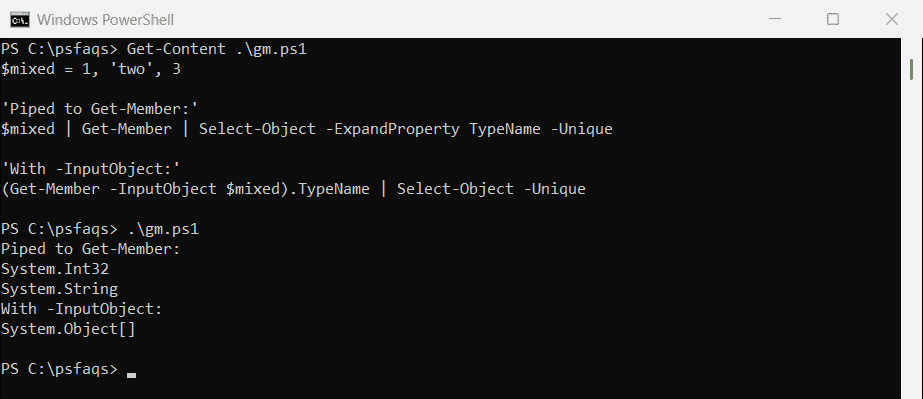
Use Get-Member -InputObject when you want the container itself. The Get-Member documentation covers -MemberType and other filters.
Check a type with the -is operator
-is returns True or False, which is what you want in an if statement. It checks the actual type, so a ZIP code stored as text isn’t an int:
$zip = '78701'

"Is a string: $($zip -is [string])"
"Is an int:   $($zip -is [int])"
"Is a number after conversion: $(($zip -as [int]) -is [int])"
Output:
Is a string: True
Is an int:   False
Is a number after conversion: True
-as tries a conversion and returns $null if it fails, so it pairs well with -is. Converting a string to an int has more on this. Microsoft covers -is, -isnot and -as in about_Type_Operators.
Check if a variable is an array
-is [array] works for normal PowerShell arrays, but it returns False for ArrayList and generic List collections. Test for IList to catch all of them:
$plain   = 'WEB01', 'WEB02'
$arrList = [System.Collections.ArrayList]@('WEB01', 'WEB02')
$list    = [System.Collections.Generic.List[string]]@('WEB01', 'WEB02')
$text    = 'WEB01'

foreach ($name in 'plain', 'arrList', 'list', 'text') {
    $v = Get-Variable -Name $name -ValueOnly
    '{0,-8} -is [array]: {1,-6} -is [Collections.IList]: {2}' -f $name, ($v -is [array]), ($v -is [System.Collections.IList])
}
Output:
plain    -is [array]: True   -is [Collections.IList]: True
arrList  -is [array]: False  -is [Collections.IList]: True
list     -is [array]: False  -is [Collections.IList]: True
text     -is [array]: False  -is [Collections.IList]: False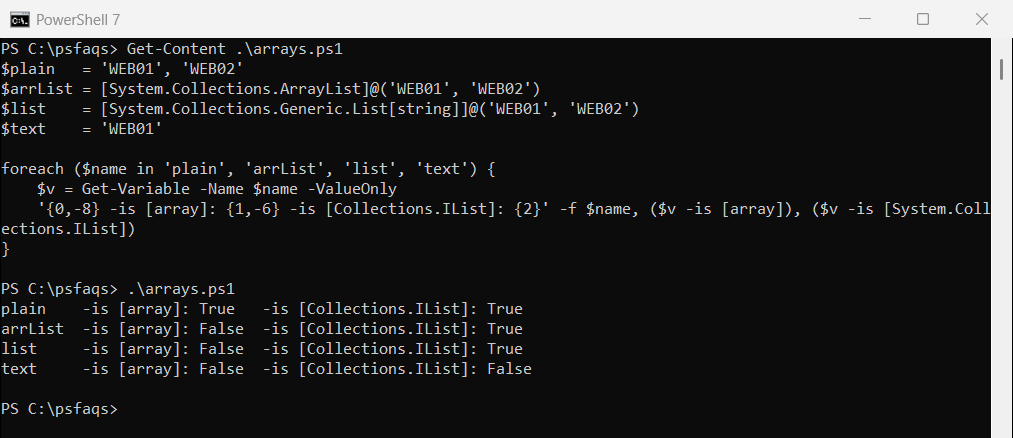
A string is not an IList, so the last line correctly says False.
Don’t use .Count or IEnumerable to spot arrays
Both tests you’ll find online give wrong answers. Every value has a Count, and strings are enumerable:
$text  = 'Austin'
$empty = $null

"'Austin'.Count = $($text.Count)"
"`$null.Count    = $($empty.Count)"
"String is IEnumerable: $($text -is [System.Collections.IEnumerable])"
Output:
'Austin'.Count = 1
$null.Count    = 0
String is IEnumerable: True
So $x.Count -gt 1 fails for a one-item array, and IEnumerable lets a string pass. Stick with -is.
One result from a command isn’t an array
When a command returns a single object, you get that object, not a one-item array. Wrap the command in @() to always get an array:
$files = Get-ChildItem -Path C:\psfaqs\OneFile
"Without @(): $($files.GetType().Name), is array: $($files -is [array])"

$files = @(Get-ChildItem -Path C:\psfaqs\OneFile)
"With @():    $($files.GetType().Name), is array: $($files -is [array])"
Output (the folder holds one file):
Without @(): FileInfo, is array: False
With @():    Object[], is array: True
That makes .Count and indexing safe whatever the comman