
Get-Service is the PowerShell cmdlet that reads the Windows services on your PC. On its own it lists every service; pipe it to Where-Object to list only the running ones. Here I check a set of standard Windows services:
$services = 'Spooler', 'W32Time', 'BITS', 'wuauserv',
            'Dnscache', 'WinRM', 'LanmanServer', 'EventLog'

Get-Service -Name $services |
    Where-Object Status -eq 'Running' |
    Sort-Object -Property Name |
    Format-Table -Property Status, Name, DisplayName
Output:
 Status Name         DisplayName
 ------ ----         -----------
Running BITS         Background Intelligent Transfer Service
Running Dnscache     DNS Client
Running EventLog     Windows Event Log
Running LanmanServer Server
Running Spooler      Print Spooler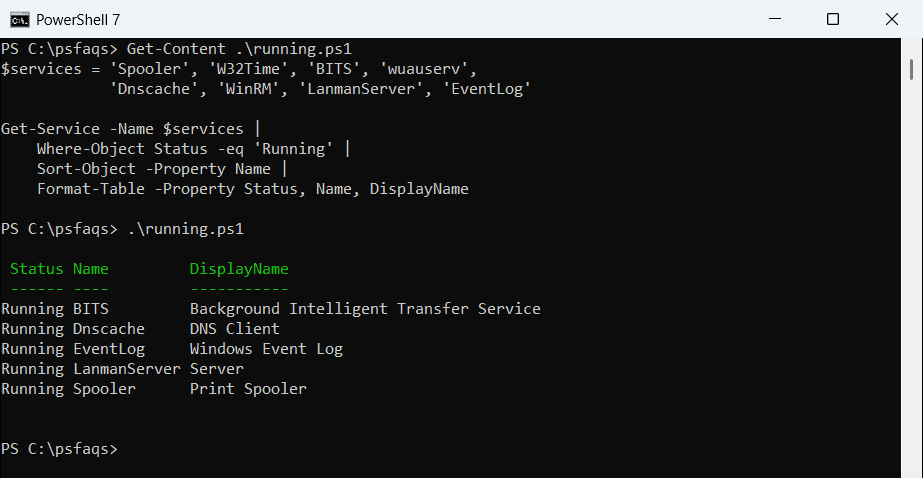
Without -Name, Get-Service returns every service on the PC. I kept the examples to built-in Windows services, so the list doesn’t show the other software installed on my laptop. On yours, just drop the -Name part.
I’ll cover the parameters, wildcards, status checks, sorting, dependencies and remote computers. I ran it all in PowerShell 7.6 and Windows PowerShell 5.1 under a standard user account, and I’ll point out where the two differ.
What does Get-Service return?
Each result is a ServiceController object, not text. The default table shows three properties: Status, Name (the short service name) and DisplayName (the friendly name in the Services app).
Because they’re objects, you can filter and pick any property, the same way you’d choose columns with Select-Object. This check counts the properties and looks for five that PowerShell 6.0 added:
$props = (Get-Service -Name Spooler | Get-Member -MemberType Properties).Name
"Properties: $($props.Count)"

foreach ($p in 'UserName', 'Description', 'DelayedAutoStart', 'BinaryPathName', 'StartupType') {
    '{0,-17}{1}' -f $p, ($p -in $props)
}
Output in Windows PowerShell 5.1:
Properties: 21
UserName         True
Description      True
DelayedAutoStart True
BinaryPathName   True
StartupType      True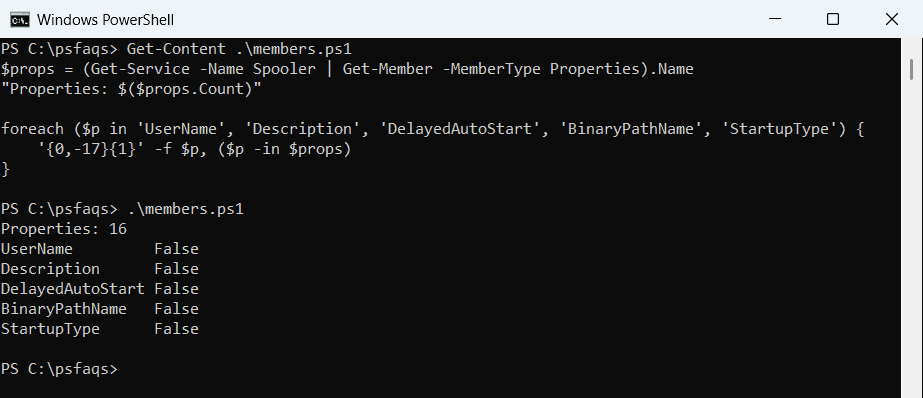
Windows PowerShell 5.1 has 16 properties and none of the five. PowerShell 7 has 21 and prints True for all of them, so scripts that read UserName or Description need PowerShell 7.
A few more basics: gsv is the built-in alias, the cmdlet exists only on Windows, and it shows only the services your account has permission to see.