
To create a file or folder in PowerShell, use New-Item with -ItemType File or -ItemType Directory. It returns the new item, so you can use it right away:
$file   = New-Item -Path C:\psfaqs\NewItem\notes.txt -ItemType File
$folder = New-Item -Path C:\psfaqs\NewItem\Archive -ItemType Directory

"Created file:   $($file.FullName) ($($file.Length) bytes)"
"Created folder: $($folder.FullName)"
Output:
Created file:   C:\psfaqs\NewItem\notes.txt (0 bytes)
Created folder: C:\psfaqs\NewItem\Archive
A new file is empty, 0 bytes, which makes New-Item the simplest way to create an empty file. I ran every example in PowerShell 7.6 and Windows PowerShell 5.1 and note where they differ.
Create a file with content
Add -Value to write text into the new file:
New-Item -Path C:\psfaqs\NewItem\readme.txt -ItemType File -Value 'Owner: IT Operations, Dallas' | Out-Null
Get-Content -Path C:\psfaqs\NewItem\readme.txt
Output:
Owner: IT Operations, Dallas-Value doesn’t add a line break at the end. Use Add-Content when you’ll keep adding lines.
When the file already exists
New-Item refuses to overwrite a file. -Force makes it go ahead, and that empties the existing file:
$file = 'C:\psfaqs\NewItem\budget.txt'
"Before: $((Get-Item -Path $file).Length) bytes"

try { New-Item -Path $file -ItemType File -ErrorAction Stop | Out-Null }
catch { "Without -Force: $($_.Exception.Message)" }

New-Item -Path $file -ItemType File -Force | Out-Null
"After -Force: $((Get-Item -Path $file).Length) bytes"
Output:
Before: 20 bytes
Without -Force: The file 'C:\psfaqs\NewItem\budget.txt' already exists.
After -Force: 0 bytes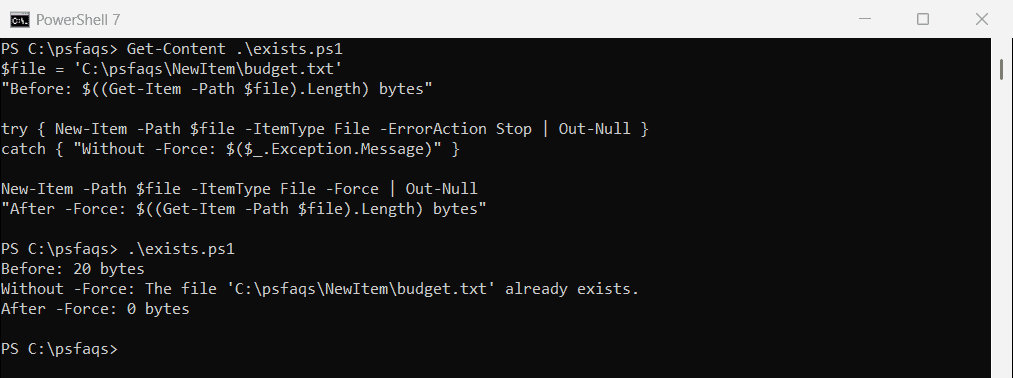
That’s easy to miss, because -Force sounds like “create if needed”. To create a file only when it’s missing, test first:
$file = 'C:\psfaqs\NewItem\budget.txt'

if (-not (Test-Path -Path $file)) { New-Item -Path $file -ItemType File | Out-Null }
"budget.txt still holds: $(Get-Content -Path $file)"
Output:
budget.txt still holds: Q3 budget: $48,000-Force on a folder is safe
For directories, -Force just returns the existing folder and leaves its contents alone:
New-Item -Path C:\psfaqs\NewItem\Reports -ItemType Directory -Force | Out-Null
"Files still in Reports: $((Get-ChildItem -Path C:\psfaqs\NewItem\Reports).Name)"
Output:
Files still in Reports: q3.csvSo New-Item -ItemType Directory -Force is a safe “make sure this folder exists” line at the top of a script.
Create nested folders and files in missing folders
New-Item creates any missing parent folders for a directory. For a file, it fails unless you add -Force:
New-Item -Path C:\psfaqs\NewItem\2026\Q3\Payroll -ItemType Directory | Out-Null
"Nested folders created: $(Test-Path -Path C:\psfaqs\NewItem\2026\Q3\Payroll)"

try { New-Item -Path C:\psfaqs\NewItem\2027\Q1\plan.txt -ItemType File -ErrorAction Stop | Out-Null }
catch { "File without -Force: $($_.Exception.Message)" }

New-Item -Path C:\psfaqs\NewItem\2027\Q1\plan.txt -ItemType File -Force | Out-Null
"File with -Force: $(Test-Path -Path C:\psfaqs\NewItem\2027\Q1\plan.txt)"
Output:
Nested folders created: True
File without -Force: Could not find a part of the path 'C:\psfaqs\NewItem\2027\Q1\plan.txt'.
File with -Force: True
Here -Force is safe, because the file doesn’t exist yet. It creates 2027 and Q1 first, then the file.
Create several files at once
-Path accepts a list. To build names from data, pipe the values to ForEach-Object and use -Name:
Set-Location -Path C:\psfaqs\NewItem
New-Item -Path 'january.csv', 'february.csv', 'march.csv' -ItemType File | Out-Null

'Austin', 'Denver', 'Miami' | ForEach-Object { New-Item -Name "$_-sales.csv" -ItemType File } | Out-Null
(Get-ChildItem -Path . -File).Name -join ', '
Output:
Austin-sales.csv, Denver-sales.csv, february.csv, january.csv, march.csv, Miami-sales.csv-Name creates the item in the current location, which the next section is about.
Create a file in the current directory
Use a relative path like .\todo.txt or -Name, and New-Item uses your current PowerShell location. .NET methods don’t:
Set-Location -Path C:\psfaqs\NewItem
New-Item -Name 'todo.txt' -ItemType File | Out-Null
"New-Item wrote to:      $((Resolve-Path -Path .\todo.txt).Path)"

[System.IO.File]::WriteAllText('dotnet.txt', 'x')
"PowerShell location:    $PWD"
".NET current directory: $([Environment]::CurrentDirectory)"
"dotnet.txt is here:     $(Test-Path -Path .\dotnet.txt)"
Output:
New-Item wrote to:      C:\psfaqs\NewItem\todo.txt
PowerShell location:    C:\psfaqs\NewItem
.NET current directory: C:\psfaqs
dotnet.txt is here:     False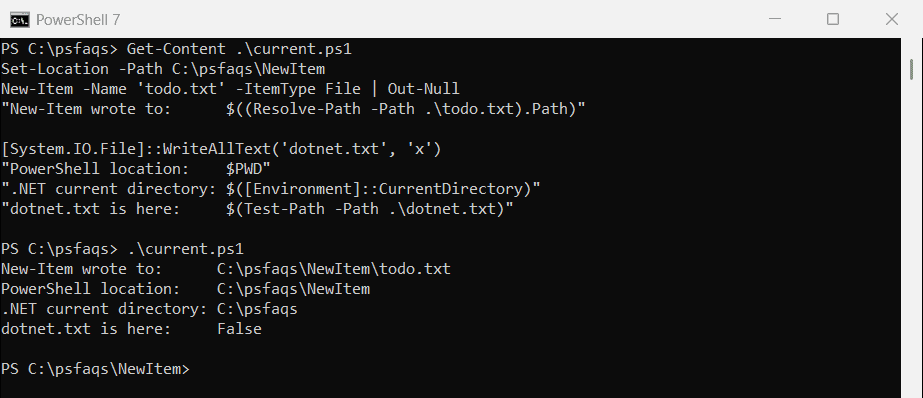
Set-Location doesn’t change .NET’s current directory, so pass .NET methods a full path, like Join-Path $PWD 'file.txt'. Microsoft explains locations in Managing the current location.
Other ways to create an empty file
Several one-liners create files, but not all of them create empty ones in Windows PowerShell 5.1:
Set-Location -Path C:\psfaqs\NewItem

New-Item -Path new-item.txt -ItemType File | Out-Null
Set-Content -Path set-content.txt -Value $null
$null > redirect.txt
Out-File -FilePath out-file.txt -InputObject $null

Get-ChildItem -Path *.txt | ForEach-Object { '{0,-16} {1} bytes' -f $_.Name, $_.Length }
Output in PowerShell 7:
new-item.txt     0 bytes
out-file.txt     0 bytes
redirect.txt     0 bytes
set-content.txt  0 bytes
Output in Windows PowerShell 5.1:
new-item.txt     0 bytes
out-file.txt     2 bytes
redirect.txt     2 bytes
set-content.txt  0 bytes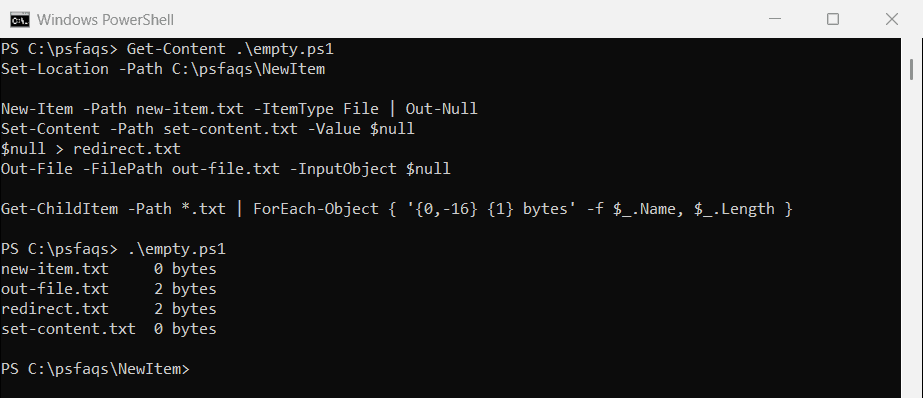
In 5.1, > and Out-File write UTF-16 and start the file with a 2-byte byte order mark. New-Item and Set-Content create a truly empty file in both versions.
A touch command for PowerShell
Linux’s touch creates a file or updates its timestamp. This function does the same without emptying existing files:
function Update-FileTime {
    param([Parameter(Mandatory)] [string]$Path)
    if (Test-Path -Path $Path) { (Get-Item -Path $Path).LastWriteTime = Get-Date }
    else { New-Item -Path $Path -ItemType File | Out-Null }
}

Update-FileTime -Path C:\psfaqs\NewItem\budget.txt
Update-FileTime -Path C:\psfaqs\NewItem\new-log.txt
"budget.txt kept its text: $(Get-Content -Path C:\psfaqs\NewItem\budget.txt)"
"new-log.txt exists:       $(Test-Path -Path C:\psfaqs\NewItem\new-log.txt)"
Output:
budget.txt kept its text: Q3 budget: $48,000
new-log.txt exists:       True
It never uses -Force on an existing file, so budget.txt kept its contents.
Create registry keys with New-Item
New-Item works in any PowerShell drive, including the registry. This creates a key under the current user’s Software key:
New-Item -Path 'HKCU:\Software\Contoso\Reports' -Force
New-ItemProperty -Path 'HKCU:\Software\Contoso\Reports' -Name 'Region' -Value 'Southwest'
-Force creates the missing Contoso key too. Microsoft’s guide to registry keys covers the rest, and the New-Item reference lists every item type.
Frequently Asked Questions
How do I create a file with PowerShell?
Use New-Item -Path C:\Temp\notes.txt -ItemType File. Add -Value 'text' to write content into it.
How do I create a folder with PowerShell?
Use New-Item -Path C:\Temp\Reports -ItemType Directory. It creates missing parent folders too.
Does New-Item -Force overwrite a file?
Yes. On an existing file, -Force replaces it with an empty file. Check with Test-Path first if the file might hold data.
How do I create an empty file in PowerShell?
Use New-Item -ItemType File. In Windows PowerShell 5.1, avoid $null > file and Out-File, which write a 2-byte byte order mark.
How do I create a file in the current directory?
Use a relative path like New-Item .\notes.txt or New-Item -Name notes.txt. Both use your current PowerShell location.
Other file cmdlets that pair with New-Item:
- Delete files and folders with Remove-Item
- Append text with Add-Content
- List the files in a folder
- Write to a log file

Bijay Kumar is an esteemed author and the mind behind PowerShellFAQs.com, where he shares his extensive knowledge and expertise in PowerShell, with a particular focus on SharePoint projects. Recognized for his contributions to the tech community, Bijay has been honored with the prestigious Microsoft MVP award. With over 15 years of experience in the software industry, he has a rich professional background, having worked with industry giants such as HP and TCS. His insights and guidance have made him a respected figure in the world of software development and administration. Read more.