
To run a PowerShell script from Task Scheduler, don’t point the task at the .ps1 file. Point it at powershell.exe and pass the script with -File, using this in the task’s Add arguments box:
-NoProfile -ExecutionPolicy Bypass -File "C:\Scripts\PSFAQs\Write-DailyReport.ps1"In this tutorial, I’ll show you how to run a PowerShell script from Task Scheduler by building a real daily task, first in the Task Scheduler window, then with Register-ScheduledTask. Then we’ll test it and break it on purpose.
I tested every step on Windows 11 in PowerShell 7.6 and Windows PowerShell 5.1, from a normal (not elevated) account.
Step 1: Write the PowerShell script you want to schedule
Start with a script that proves it ran. This one appends a line to a log file next to itself, with the Eastern time, the PowerShell version and the folder it started in. Save it as C:\Scripts\PSFAQs\Write-DailyReport.ps1:
$eastern = [TimeZoneInfo]::FindSystemTimeZoneById('Eastern Standard Time')
$now = [TimeZoneInfo]::ConvertTime([DateTime]::UtcNow, $eastern)
$log = Join-Path -Path $PSScriptRoot -ChildPath 'daily-report.log'
$line = '{0:yyyy-MM-dd HH:mm} ET | PowerShell {1} | started in {2}' -f $now, $PSVersionTable.PSVersion, (Get-Location).Path
Add-Content -Path $log -Value $line
$PSScriptRoot is the folder the script lives in, so the log always lands in C:\Scripts\PSFAQs, whatever the current folder is. Add-Content appends instead of overwriting; the guide to writing a PowerShell log file shows more logging options.
Run it once by hand before you schedule anything:
& 'C:\Scripts\PSFAQs\Write-DailyReport.ps1'
Get-Content -Path 'C:\Scripts\PSFAQs\daily-report.log' -Tail 1
Output:
2026-10-18 06:34 ET | PowerShell 7.6.7 | started in C:\psfaqsThe output above is from PowerShell 7. Windows PowerShell 5.1 wrote the same line with PowerShell 5.1.26100. If the script fails here, it will fail in Task Scheduler too, only more quietly.
Step 2: Create the task in the Task Scheduler window
Press Win+R, type taskschd.msc and press Enter. In the left pane, right-click Task Scheduler Library, choose New Folder and name it PSFAQs. A folder keeps your tasks apart from the hundreds Windows ships with.
Select the PSFAQs folder, then click Create Task in the Actions pane on the right. Use Create Task rather than Create Basic Task, because only the full dialog shows every security and settings option.
On the General tab, type the name PSFAQs Daily Report. Under Security options, pick when it may run:
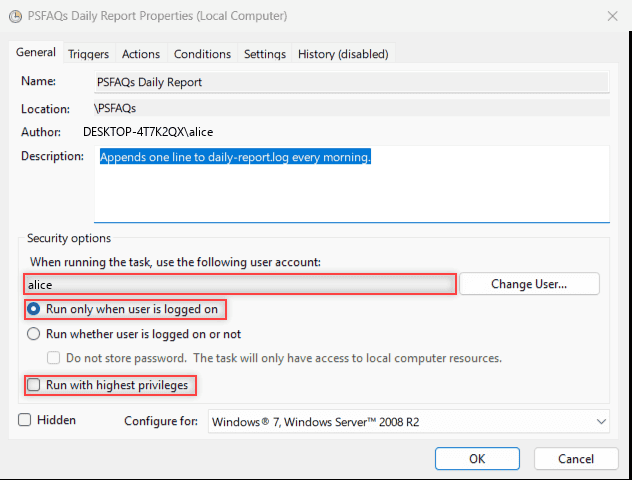
Run only when user is logged on is the simplest choice, and it’s what I used. Run whether user is logged on or not asks for your password when you save. Run with highest privileges needs an administrator account.
On the Triggers tab, click New, choose On a schedule, select Daily and set the start time to 7:00 AM: