A nightly order import for an Austin coffee roaster kept failing because it read the vendor’s file before the upload finished. The PowerShell sleep command fixed it: Start-Sleep pauses the script, then the next line runs.
Start-Sleep -Seconds 5In this tutorial, I’ll show you how PowerShell sleep works with seconds, milliseconds and a TimeSpan, how to wait in a loop with a timeout, show a countdown, and where Windows PowerShell 5.1 behaves differently from PowerShell 7.
Quick answer: these are the forms you’ll use most:
| Goal | Command |
|---|---|
| Pause five seconds | Start-Sleep -Seconds 5 or sleep 5 |
| Pause half a second | Start-Sleep -Milliseconds 500 |
| Pause for a TimeSpan (7.3+) | Start-Sleep -Duration (New-TimeSpan -Minutes 2) |
| Wait for a person | pause or Read-Host |
How to use Start-Sleep -Seconds in PowerShell
Start-Sleep suspends the script or session for the time you give it and returns nothing. -Seconds is the default parameter (position 0), so the name is optional. This export script pauses three times and times the whole run with a stopwatch:
$timer = [System.Diagnostics.Stopwatch]::StartNew()
'Exporting Austin orders...'
Start-Sleep -Seconds 2
'Exporting Dallas orders...'
Start-Sleep 1
sleep 1
'Finished in {0:N0} seconds' -f $timer.Elapsed.TotalSeconds
Output:
Exporting Austin orders...
Exporting Dallas orders...
Finished in 4 seconds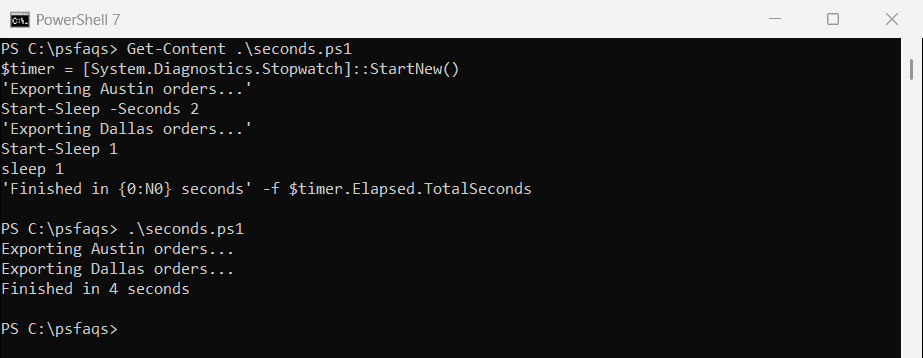
The stopwatch measured four seconds, the sum of the three pauses. sleep is the built-in alias for Start-Sleep, but only on Windows, so spell out the cmdlet name in cross-platform scripts.
Put the same line inside a PowerShell for loop to space out work,.
Sleep for milliseconds with Start-Sleep -Milliseconds
For pauses shorter than a second, such as spacing out API calls, use -Milliseconds. You can shorten it to -m. Measure-Command shows how long each pause really took:
$t = Measure-Command { Start-Sleep -Milliseconds 500 }
'-Milliseconds 500 took {0:N1} seconds' -f $t.TotalSeconds
$t = Measure-Command { Start-Sleep -m 300 }
'-m 300 took {0:N1} seconds' -f $t.TotalSeconds
Output:
-Milliseconds 500 took 0.5 seconds
-m 300 took 0.3 seconds
Measure-Command returns a TimeSpan, and TotalSeconds turns it into a number. In 20 test runs, a 500 ms sleep took 500.7 to 520.9 ms and never less, so treat the value as a minimum, not an exact time.
PowerShell 7 also accepts the -ms alias. Windows PowerShell 5.1 doesn’t, and stops with “A parameter cannot be found that matches parameter name ‘ms’.” The -m abbreviation works in both.
Why does Start-Sleep 1.5 wait 2 seconds in Windows PowerShell 5.1?
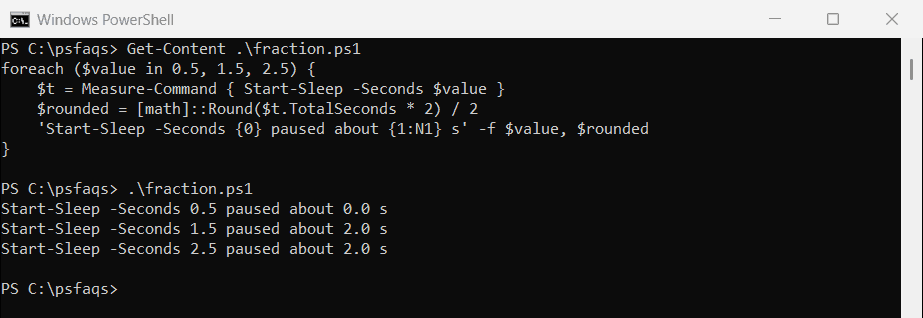
PowerShell 7 declares -Seconds as a double, and Microsoft added fractional values in PowerShell 6.2. Windows PowerShell 5.1 declares it as a whole number, so it rounds your value first. Here’s the same loop in 5.1:
foreach ($value in 0.5, 1.5, 2.5) {
    $t = Measure-Command { Start-Sleep -Seconds $value }
    $rounded = [math]::Round($t.TotalSeconds * 2) / 2
    'Start-Sleep -Seconds {0} paused about {1:N1} s' -f $value, $rounded
}
Output:
Start-Sleep -Seconds 0.5 paused about 0.5 s
Start-Sleep -Seconds 1.5 paused about 1.5 s
Start-Sleep -Seconds 2.5 paused about 2.5 s