
To set folder permissions using PowerShell, read the folder’s ACL with Get-Acl, add a FileSystemAccessRule, and write it back with Set-Acl. This grants the Users group Modify on a folder and everything inside it:
$acl = Get-Acl -Path C:\Data\Reports
$rule = [System.Security.AccessControl.FileSystemAccessRule]::new(
    'BUILTIN\Users', 'Modify', 'ContainerInherit, ObjectInherit', 'None', 'Allow')
$acl.SetAccessRule($rule)
Set-Acl -Path C:\Data\Reports -AclObject $acl
Below I view permissions, grant and remove access, control inheritance and do the same with icacls. I tested everything on a test folder in PowerShell 7.6 and 5.1, and masked my account name.
View the current folder permissions
Get-Acl returns the owner and the list of access rules. I print each rule on one line so it’s easy to read:
$acl = Get-Acl -Path C:\psfaqs\Perms\Reports
"Owner: $($acl.Owner)"
$acl.Access | ForEach-Object {
    '{0,-34} {1,-28} {2}' -f $_.IdentityReference, $_.FileSystemRights, $(if ($_.IsInherited) { 'inherited' } else { 'explicit' })
}
Output:
Owner: DESKTOP-4T7K2QX\alice
BUILTIN\Administrators             FullControl                  inherited
NT AUTHORITY\SYSTEM                FullControl                  inherited
BUILTIN\Users                      ReadAndExecute, Synchronize  inherited
NT AUTHORITY\Authenticated Users   Modify, Synchronize          inherited
NT AUTHORITY\Authenticated Users   -536805376                   inherited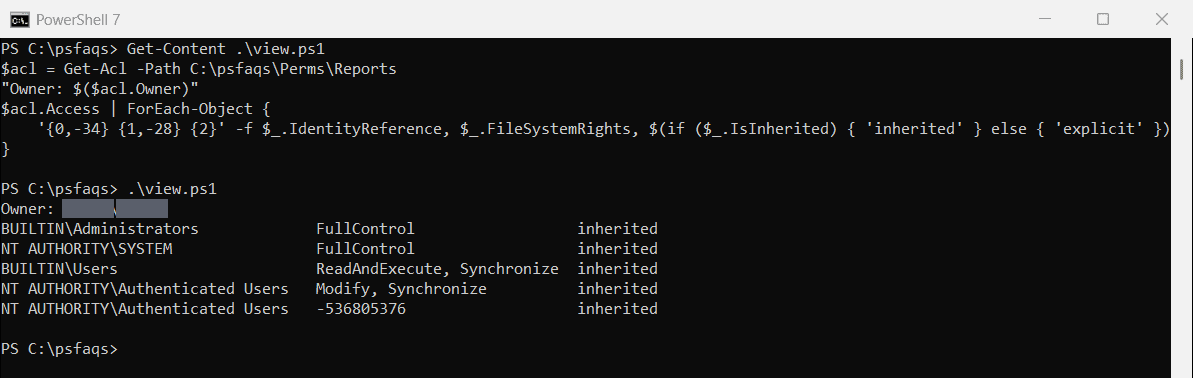
A raw number in the rights column, like -536805376, is a generic right that only applies to files and subfolders created inside. You don’t need admin rights to read or change permissions on folders you own.
Grant permissions to a user or group
The rule has five parts: who, what rights, how it’s inherited, how it propagates, and allow or deny. After Set-Acl, a file inside the folder picks up the new right:
$acl = Get-Acl -Path C:\psfaqs\Perms\Reports
$rule = [System.Security.AccessControl.FileSystemAccessRule]::new(
    'BUILTIN\Users', 'Modify', 'ContainerInherit, ObjectInherit', 'None', 'Allow')
$acl.SetAccessRule($rule)
Set-Acl -Path C:\psfaqs\Perms\Reports -AclObject $acl

(Get-Acl -Path C:\psfaqs\Perms\Reports\2026\q3-sales.csv).Access |
    Where-Object IdentityReference -eq 'BUILTIN\Users' |
    ForEach-Object { "q3-sales.csv: Users have $($_.FileSystemRights) (inherited: $($_.IsInherited))" }
Output:
q3-sales.csv: Users have Modify, Synchronize (inherited: True)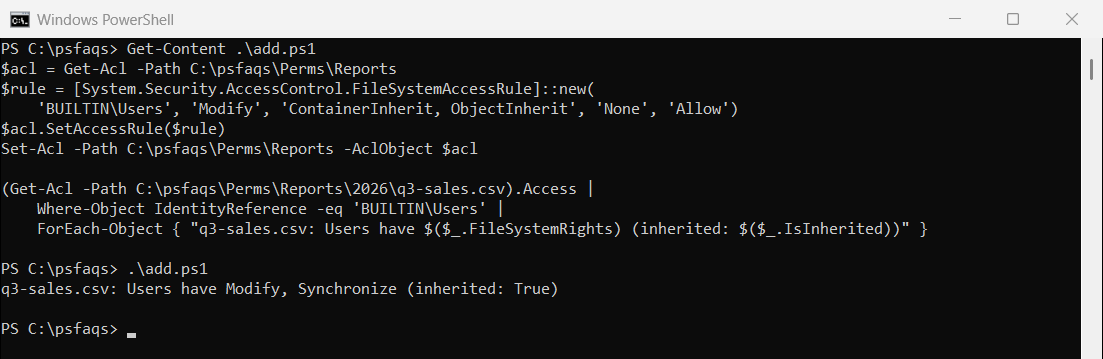
ContainerInherit passes the rule to subfolders and ObjectInherit to files. Leave both out to change only the folder itself.
Common rights values
| Right | What it allows |
|---|---|
| ReadAndExecute | Open files, list folders and run programs |
| Modify | Read, write and delete, but not change permissions |
| FullControl | Everything, including changing permissions and ownership |
| Write | Create files and folders, without reading or deleting |
Remove a permission
RemoveAccessRule takes out an explicit rule. Inherited rules can’t be removed this way; you change them on the parent or turn off inheritance:
$acl = Get-Acl -Path C:\psfaqs\Perms\Reports
$explicit = $acl.Access | Where-Object { $_.IdentityReference -eq 'BUILTIN\Users' -and -not $_.IsInherited }
"Explicit Users rules before: $(@($explicit).Count)"

$explicit | ForEach-Object { [void]$acl.RemoveAccessRule($_) }
Set-Acl -Path C:\psfaqs\Perms\Reports -AclObject $acl

$after = (Get-Acl -Path C:\psfaqs\Perms\Reports).Access | Where-Object { $_.IdentityReference -eq 'BUILTIN\Users' -and -not $_.IsInherited }
"Explicit Users rules after:  $(@($after).Count)"
Output:
Explicit Users rules before: 1
Explicit Users rules after:  0
To remove every explicit rule for one account at once, use $acl.PurgeAc