
To format a date in PowerShell, pass a format string to Get-Date -Format. MM is the month, dd the day, yyyy the year, HH the hour on a 24-hour clock and mm the minutes:
$date = Get-Date '2026-09-28 14:05:09'

Get-Date -Date $date -Format 'MM/dd/yyyy'
Get-Date -Date $date -Format 'yyyy-MM-dd HH:mm'
Get-Date -Date $date -Format 'dddd, MMMM d, yyyy'
Output:
09/28/2026
2026-09-28 14:05
Monday, September 28, 2026
Every example here uses the same fixed date, September 28, 2026 at 2:05:09 PM, so your output will match mine. Replace -Date $date with nothing to format the current time.
I ran everything on Windows 11 with US English (en-US) regional settings, in PowerShell 7.6 and Windows PowerShell 5.1. The two versions agree, except for a few details I point out below.
Common custom date formats
Custom formats let you build any layout. Here are the ones I use most, with the format string on the left:
'{0,-22} {1}' -f 'MM/dd/yyyy',          (Get-Date -Date $date -Format 'MM/dd/yyyy')
'{0,-22} {1}' -f 'M/d/yy',              (Get-Date -Date $date -Format 'M/d/yy')
'{0,-22} {1}' -f 'yyyy-MM-dd',          (Get-Date -Date $date -Format 'yyyy-MM-dd')
'{0,-22} {1}' -f 'MMM d, yyyy',         (Get-Date -Date $date -Format 'MMM d, yyyy')
'{0,-22} {1}' -f 'dddd, MMMM d, yyyy',  (Get-Date -Date $date -Format 'dddd, MMMM d, yyyy')
'{0,-22} {1}' -f 'h:mm tt',             (Get-Date -Date $date -Format 'h:mm tt')
'{0,-22} {1}' -f 'HH:mm:ss',            (Get-Date -Date $date -Format 'HH:mm:ss')
'{0,-22} {1}' -f 'yyyyMMdd_HHmmss',     (Get-Date -Date $date -Format 'yyyyMMdd_HHmmss')
Output:
MM/dd/yyyy             09/28/2026
M/d/yy                 9/28/26
yyyy-MM-dd             2026-09-28
MMM d, yyyy            Sep 28, 2026
dddd, MMMM d, yyyy     Monday, September 28, 2026
h:mm tt                2:05 PM
HH:mm:ss               14:05:09
yyyyMMdd_HHmmss        20260928_140509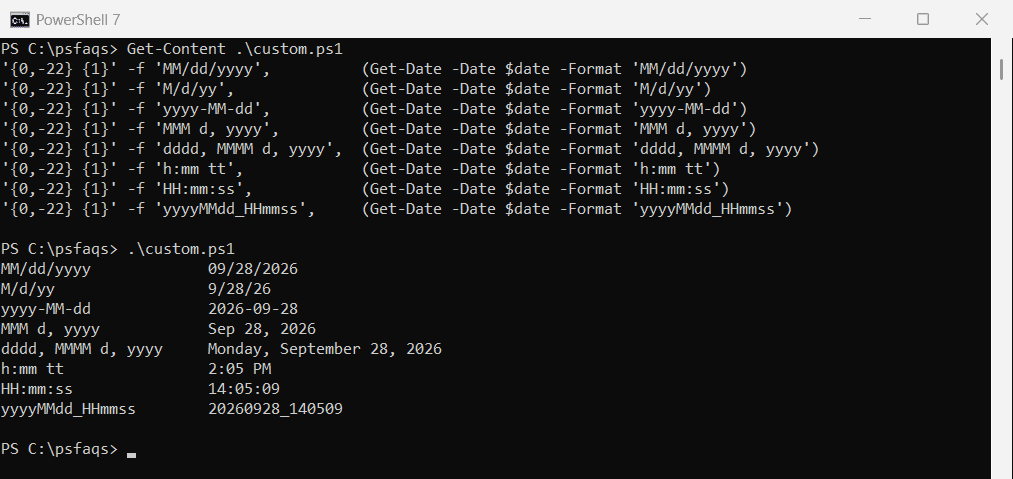
yyyyMMdd_HHmmss is my go-to for file names, because it sorts correctly and has no characters Windows won’t allow.
Standard format specifiers (d, D, t, g, s, o)
Single letters are shortcuts for full patterns. They follow the regional settings of the PC, which makes them a good fit for output people will read:
foreach ($f in 'd', 'D', 't', 'T', 'g', 'G', 'M', 'Y', 's', 'o') {
    '{0}  {1}' -f $f, (Get-Date -Date $date -Format $f)
}
Output:
d  9/28/2026
D  Monday, September 28, 2026
t  2:05 PM
T  2:05:09 PM
g  9/28/2026 2:05 PM
G  9/28/2026 2:05:09 PM
M  September 28
Y  September 2026
s  2026-09-28T14:05:09
o  2026-09-28T14:05:09.0000000
s and o are the exceptions. They always use the sortable ISO 8601 layout, whatever the region. Use them in logs and in data you exchange with other systems.
How do I show the time in 24-hour format?
Use uppercase HH for the 24-hour clock and lowercase hh plus tt for 12-hour time with AM/PM:
Get-Date -Date $date -Format 'HH:mm'          # 24-hour clock
Get-Date -Date $date -Format 'hh:mm tt'       # 12-hour clock with AM/PM
Get-Date -Date $date -Format 'MM/dd/yyyy HH:mm:ss'
Output:
14:05
02:05 PM
09/28/2026 14:05:09
Get the date without the time
There are three ways, and the difference is the type you get back:
$date.Date                         # midnight, still a DateTime
$date.ToShortDateString()          # text in your regional format
Get-Date -Date $date -Format 'd'   # same, via -Format
Output:
Monday, September 28, 2026 12:00:00 AM
9/28/2026
9/28/2026
.Date keeps a real DateTime set to midnight, which is what you want before comparing dates. The other two return text.
Get the day of week, day of month and month name
A DateTime already has these as properties, so you often don’t need a format string at all:
"Day of month : $($date.Day)"
"Day of week  : $($date.DayOfWeek)"
"Day number   : $([int]$date.DayOfWeek)   (Sunday = 0)"
"Day of year  : $($date.DayOfYear)"
"Month number : $($date.Month)"
"Month name   : $(Get-Date -Date $date -Format 'MMMM')"
"Short month  : $(Get-Date -Date $date -Format 'MMM')"
Output:
Day of month : 28
Day of week  : Monday
Day number   : 1   (Sunday = 0)
Day of year  : 271
Month number : 9
Month name   : September
Short month  : Sep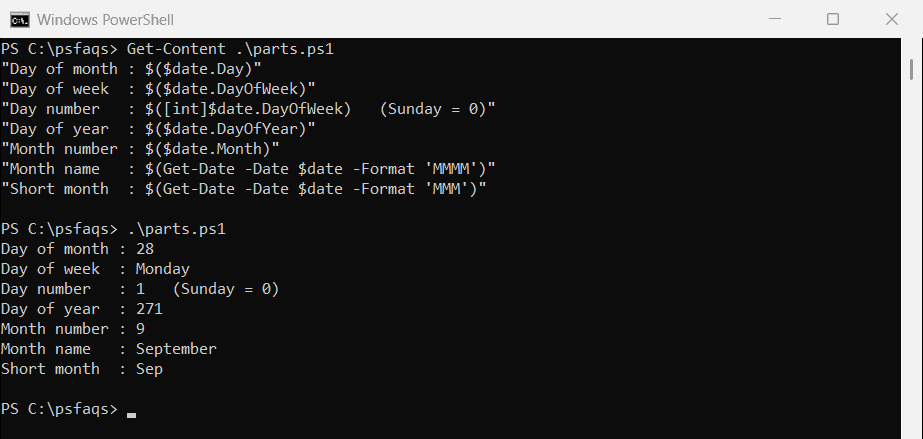
DayOfWeek counts from Sunday as 0, so Monday is 1. For month names in another language, ask that culture:
(Get-Culture).DateTimeFormat.MonthNames[0..2]
[cultureinfo]::GetCultureInfo('es-US').DateTimeFormat.GetMonthName(9)
Output:
January
February
March
septiembre
Format dates with -UFormat
-UFormat uses Unix-style codes such as %Y and %m. It’s handy if you already know them from Linux or macOS:
Get-Date -Date $date -UFormat '%Y-%m-%d %H:%M:%S'
Get-Date -Date $date -UFormat '%A, %B %d'
Get-Date -Date $date -UFormat 'Day %j of the year'
Output:
2026-09-28 14:05:09
Monday, September 28
Day 271 of the year
Be careful with the week number. %V is supposed to be the ISO 8601 week, and September 28, 2026 is in ISO week 40. PowerShell 7 gets it right:
Get-Date -Date $date -UFormat 'ISO week %V'Output in PowerShell 7:
ISO week 40Windows PowerShell 5.1 prints ISO week 39 for the same date. In 5.1, ask the calendar for the week instead. It works in both versions:
(Get-Culture).Calendar.GetWeekOfYear($date, 'FirstFourDayWeek', 'Monday')Output:
40